GV Connect for iPhone, iPod Touch & iPad
Colored and underlined text indicates new features only available in the upcoming release of the application currently in review by Apple on the iPhone AppStore — some of the screen shots might also reflect the new version and be slightly different from the version currently available for download.
GV Connect is the most feature-rich Google Voice application available for your iPhone, iPod Touch, or iPad — interact with your existing "Google Voice" accounts much faster than using the web interface:
- Place calls using your Google Voice number rather than your mobile number — enter numbers directly, select a contact from your device's contacts, or call back any number in your history. The application can seamlessly handle multiple Google Voice accounts; calls can be placed using call back, direct call, or offline dialing (automatic fallback with no data connection) — see below for an explanation of the supported calling modes.
- Send and receive text messages (SMS) from your Google Voice number — including support for long messages exceeding 160 characters, sending to multiple recipients at once, and support for non-English messages. SMS composed with no active internet connection can be queued for automatic sending the next time the application detects a working internet connection while active.
- Send and receive picture messages (MMS) and playback incoming audio and video attachments. Please note that MMS support requires activation via a one-time In-App Purchase.
- Automatically check for new SMS and voicemails - even when the application is in the background.
- Listen to voicemails and recorded conversations right on your device (allowing you to pause, rewind, or fast forward to any point within the message) — voicemails will also show the transcription of the message when available.
- Mark messages as starred or un-/read, attach notes to conversations, block/unblock senders, un-/archive, trash or delete conversations.
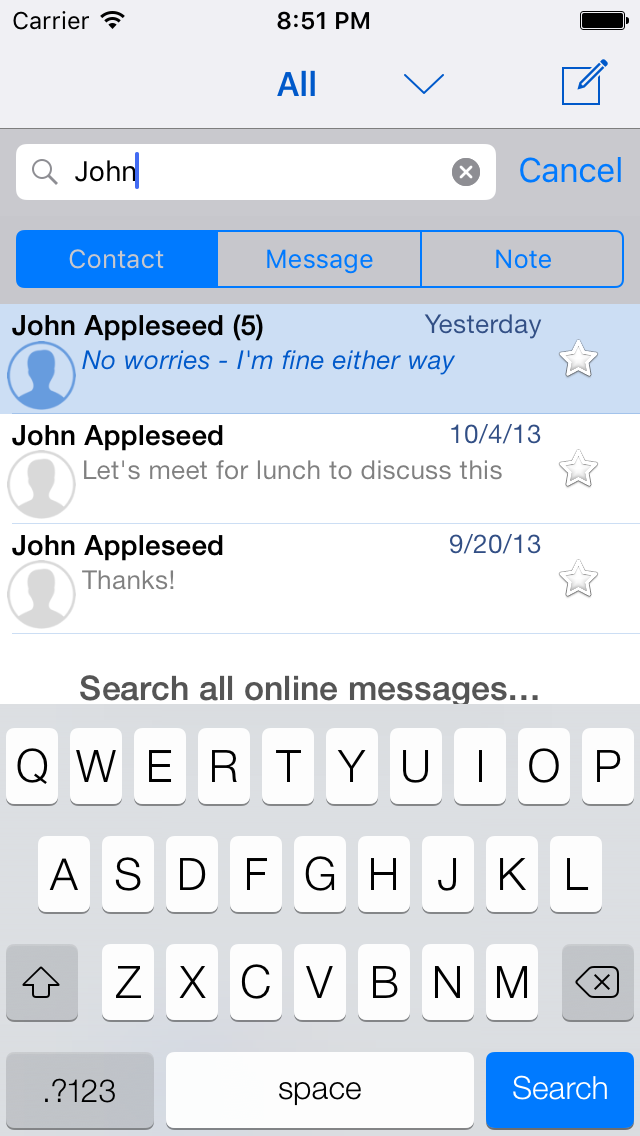
- Easily search in your history by contact, message, or note content – supports continuing searches online for messages that have not yet been cached locally.
- All messages (including voicemails) are stored on your device for convenient offline access.
- Composing notes and text messages can be done in landscape mode.
- Quickly change various Google Voice account settings (call forwarding, do-not-disturb, message notifications, …) and add additional calling credit to your account directly from within the application.
- Quick Settings allow saving and restoring complete account settings (DND, forwarding, …) for easy switching between different profiles.
- Automatic selection of Quick Settings based on current location (available as In-App Purchase on supported devices).
- Supports gesture navigation when typing text for easier placement of the cursor: swipe left/right with one or two fingers to move the caret position backwards/forward by character or word. Swipe left/right with three fingers to go to the beginning/end of the existing text.
- Supports TextExpander touch snippet expansion.
- All communication is done with the Google Voice website directly, no need to hand over your account information to a third-party.
Please note that GV Connect is not a SIP/VoIP application and will thus not allow making calls from an iPad or iPod Touch without a separate VoIP/SIP application. GV Connect currently does not support answering a call back to your 'Google Talk' callback number directly on the device — see VoIP Calling for current solution that allow making and receiving calls using data only.
GV Connect stores your account password securely in your device's keychain for faster login when launching the application — communication is done via secure connections (SSL) to the Google Voice servers and no contact information (other than the contact's phone number which is required to place a call or send a message) is sent to Google. All operations are fully synchronized with your Google Voice account.
GV Connect is available on the iPhone App Store (requires iOS 11.0 or higher and an existing full Google Voice account including GV phone number).
Macintosh users please also check out the free GV Connect Dashboard Widget (requires MacOS X 10.7 or higher).
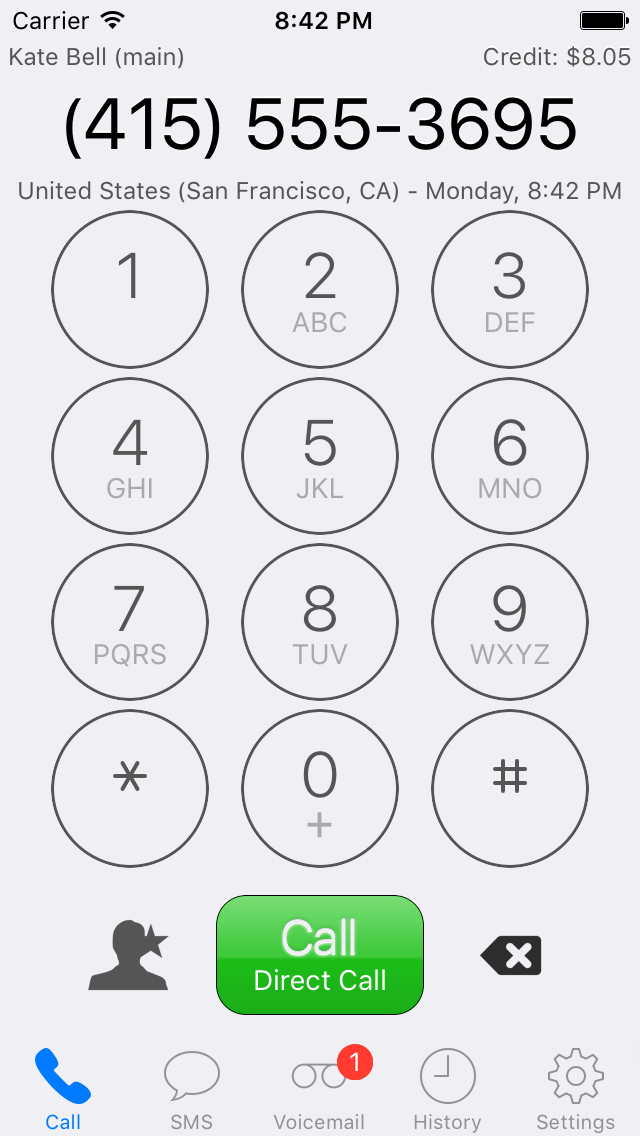
Keypad View
• Enter a number using the keypad or select any number from the device's contacts database by tapping the contact/favorite icon in the lower left. Tap and hold the contact/favorite icon to display the favorites view
• Tap the phone number field at the top to paste the current clipboard contents (letters will be converted to numbers as indicated on the keypad)
• The location and current local time for number to be called is shown below the number (when available)
• Your current Google Voice calling credit is shown in the top right corner
• Start the call (using call back to the number shown) by tapping the "Call" button
• Change the call back number in the Settings view, by selecting the "Call" button before entering any numbers, or when starting the call by holding down the "Call" button until the call back selection appears (the call will then be started immediately using the selected call back number)
• If you currently don't have an active internet connection (which is required to initiate the call back) and are using an iPhone, you will be prompted whether you would like to initiate the call by placing an outgoing call through your Google Voice number instead (minutes charges might apply). This requires that you have not changed the default setting for your iPhone on your Google Voice phone settings on the website ("Direct access to voicemail when calling your Google number from this phone" in Advanced settings set to "Yes")
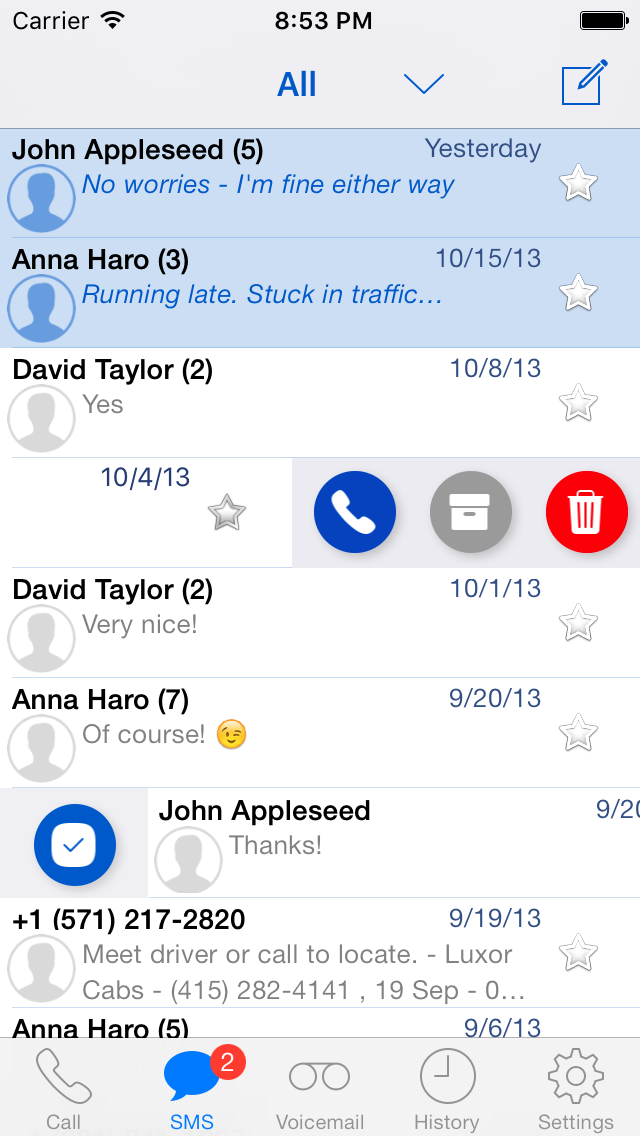
SMS Message List
• The number of messages in each conversation is shown after contact name
• Conversations with unread messages are shown in blue color/italic font and with a light blue background
• Select any item to view the full conversation, reply to a message, or call back the sender
• Start a new conversation by tapping the icon at the top right
• Tap the star to (un)mark message as starred
• Select a filter at the top to only show a certain subset of messages
• Attached notes are indicated by a little note icon before the message time — depending on the preference setting for "Notes in Message Lists", the details for an individual conversation are either the standard details (last SMS content) or the note contents (if a note is present)
• Swipe any conversation in the list to the left to archive  , move back to inbox
  , trash/delete
  , undelete
  , or call back
  the number
• On devices running iOS 11 or later, swipe any conversation in the list to the right to mark it as un-/read 
• Tap & hold any conversation in the list to bring up additional options (mark as un-/read, un-/archive, block sender, forward as email, …). On devices supporting "Force Touch", press firmly to peek into the conversation and swipe up during the peek to reveal those actions.
• Scroll up to reveal search box
Search in SMS Message List
• Scrolling up in the message list reveals the search box
• Search within the contact names as well as message or note contents
• When the "All" section is selected at the top of the message list, a "Search all online messages…" row will appear below the search results - clicking this row will continue the search online (including messages that have not yet been cached locally)
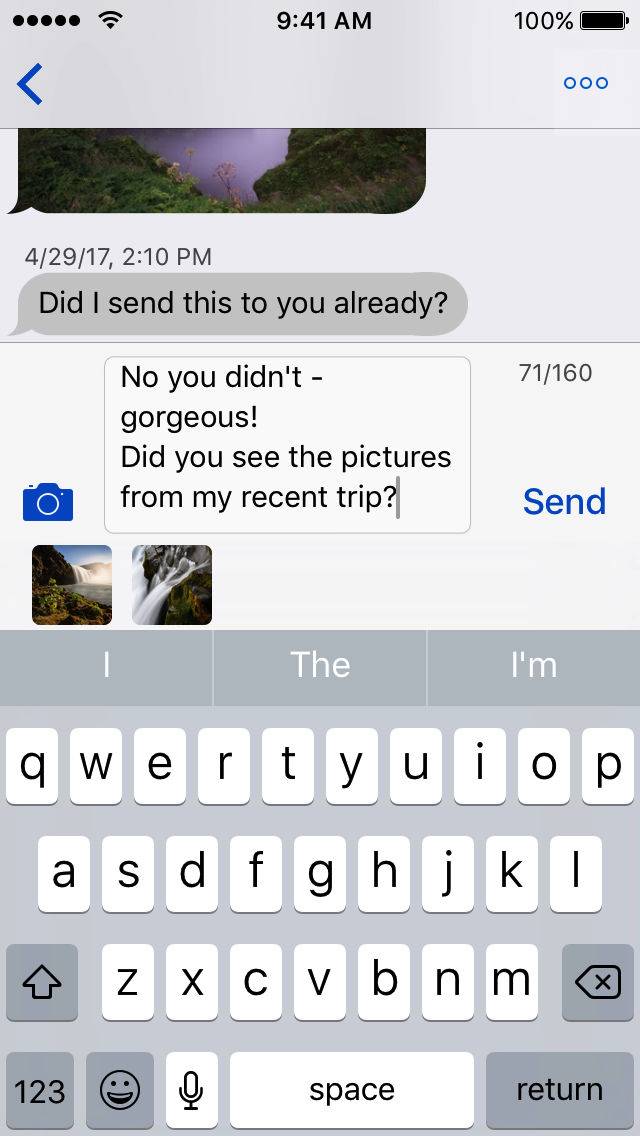
SMS Conversation View
• Tap the reply field at the bottom of the conversation to type and send a reply to the current conversation. The reply field will show a character counter to show the number of characters (or number of SMS the message will be broken into). You can also double-tap anywhere in the previous conversation to show the keyboard and start typing a reply.
• Tap the camera icon to attach an image (selecting from your existing images or taking a new image with the camera) to the message (note: sending images requires purchase of the MMS In-App feature). Attached images will display as small thumbnails below the reply field – tapping a preview image will remove the image from the message to be sent.
• Pull down at the top of the message list to load older messages in the conversation (if present)
• Tap the preview of any image in the conversation to show a full screen version of the image (and reveal image actions such as saving to your camera roll)
• Tap the note to edit existing note or select the action button at the top to add/delete note
• Tap any message row to select and copy message text. The popup menu will display a "More…" item if the selected text contains a phone number — selecting this item will allow to call the number or send an SMS to it via GV Connect
• Swipe any message to the left to reveal the delete button to delete individual messages
• Tap the "add contact" button next to the phone number at the bottom of the conversation to attach a name to the number and add it as a new contact to your Google Voice or device contacts (the button will only be visible if the displayed phone number is not already present in both, your Google Voice and device contacts). When adding a contact to your device's address book you can select whether to create a new contact or add the number to an existing contact
• Tap and hold the phone number at the bottom to copy the phone number
• Selecting the action button at the top will bring up additional options (call contact, un-/archive, block sender, forward as email, or trash/delete the conversation — note that deleting a conversation will completely remove it from the Google Voice website as well. Tap and hold the "Call" button to change the call back number on the fly)
• Tap and hold the action button to call back the conversation partner using your currently selected calling method
• For contacts in your device's address book, the title bar will show the contact's name - tap the title bar or the contact's image at the bottom to open the contact to show additional information or to allow editing the contact
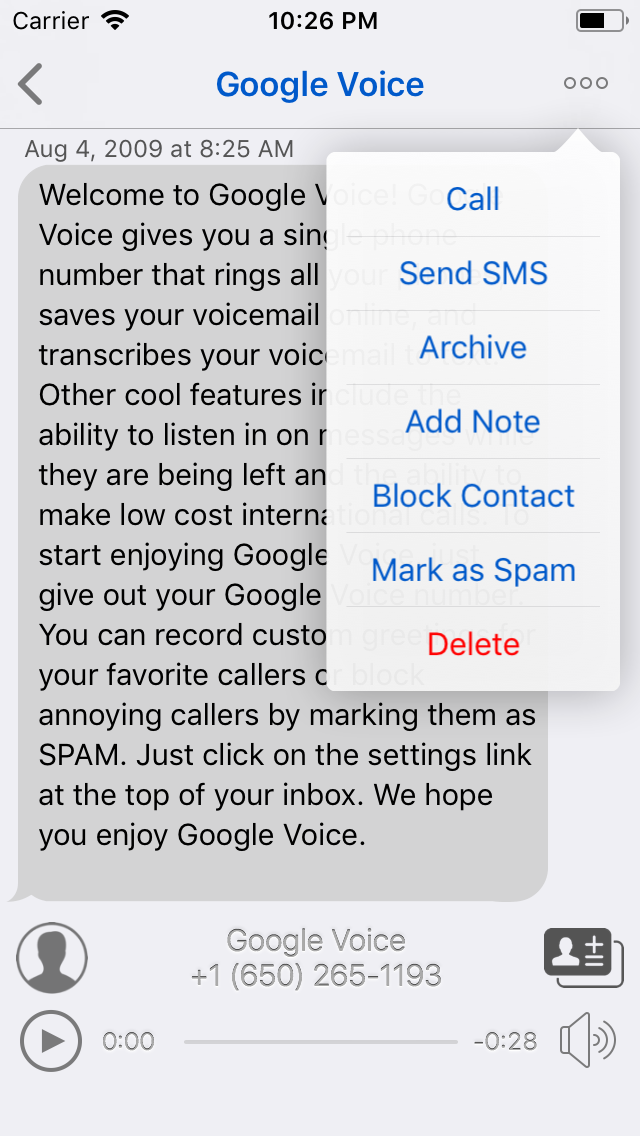
Voicemail Detail View
• Select the play button at the bottom to start playing the original message
• Use the slider to scroll to any point in the recording
• Use the speaker icon to toggle sound output between speaker or the phone's earpiece (speaker icon without sound waves emerging — iPhone only); a currently connected Bluetooth headset will be used instead of the phone's earpiece
• Tap the transcription to select and copy message text. The popup menu will display a "More…" item if the selected text contains a phone number — selecting this item will allow to call the number or send an SMS to it via GV Connect
• Tap the add contact button next to the phone number at the bottom of the conversation to attach a name to the number and add it as a new contact to your Google Voice or device contacts (the button will only be visible if the displayed phone number is not already present in both, your Google Voice and device contacts). When adding a contact to your device's address book you can select whether to create a new contact or add the number to an existing contact
• Tap and hold the phone number at the bottom to copy the phone number
• Selecting the action button at the top will bring up additional options
• Tap and hold the action button to call back the conversation partner using your currently selected calling method
• For contacts in your device's address book, the title bar will show the contact's name - tap the title bar or the contact's image at the bottom to open the contact to show additional information or to allow editing the contact
Settings View
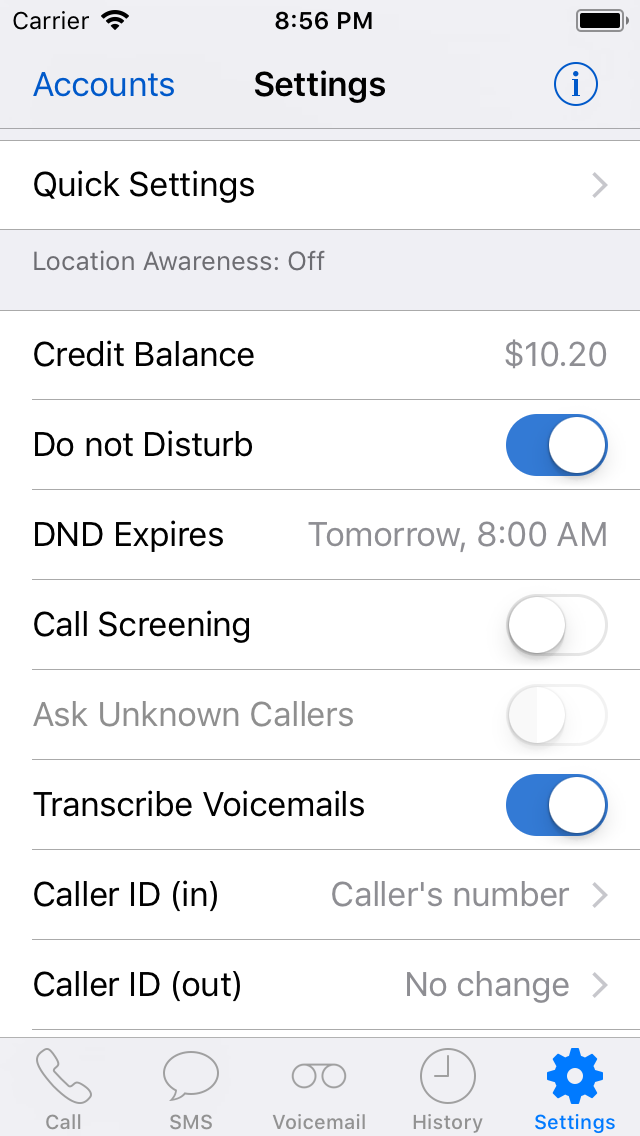
The first entry in the settings allows access to "Quick Settings" — you can create named Settings (using the current settings for forwarding, DND, notifications, … for the current account) or quickly change all settings to a previously saved state by selecting an existing Quick Setting. If the current account settings match one or more of the Quick Settings defined for the currently selected account, the name of the matching Quick Setting will be shown.
In the Quick Settings view, swipe to delete or rename any of the existing Quick Settings. When selecting "Edit" in the list of Quick Settings, the settings comprising each Quick Setting can be inspected or changed and a new Quick Setting can be created.
If you enable "Location Awareness" in the "Quick Settings" list, you can assign a location to each of your Quick Settings. Upon reaching that location, the application will automatically change your account settings to match the settings for that Quick Setting (even when the application is in the background). Additionally, you can denote one of your Quick Settings as the "Default" settings which will be enabled upon leaving any of the locations attached to other Quick Settings. You can choose to get a notification every time Location Awareness changes your settings.
Location Awareness is available as an optional In-App Purchase on supported devices – this feature requires region monitoring which is only supported on the iPhone 4 and above, iPad 2 (3G), and iPad 3 and above.
The next section allows you to change general settings of your account (the email address associated with the currently selected account and your own Google Voice number are displayed at the top of the Settings list):
• Show current credit balance for international calls (updated on application start)
• En-/disable "Do not disturb" setting (when DND is enabled, all calls placed to your Google Voice number are routed directly to voicemail)
• When DND is enabled, you can specify an expiration date/time for DND — when selected, DND will automatically be turned off again at the selected time. Without an expiration time set, DND will remain active until you manually disable it again
Google removed automatic DND expiration in spring of 2022 so this feature has been removed from GV Connect as of version 3.7.0
• En-/disable "Call screening" (whether you get connected directly to incoming calls or hear answering options instead)
• Specify whether unknown callers will be prompted to say their name when call screening is enabled
• En-/disable voicemail to text transcription
• Select what number to show as Caller ID on incoming calls (your own Google Voice number or the caller's number)
• Select outgoing Caller ID when sending SMS to another Google Voice number from one of your forwarding phones (keep the forwarding phone's original number or use your GV phone number)
• Select "Accounts" at the top left to switch between multiple accounts or add/remove accounts — removing an account will remove your password from the device's keychain and delete all local data for that account
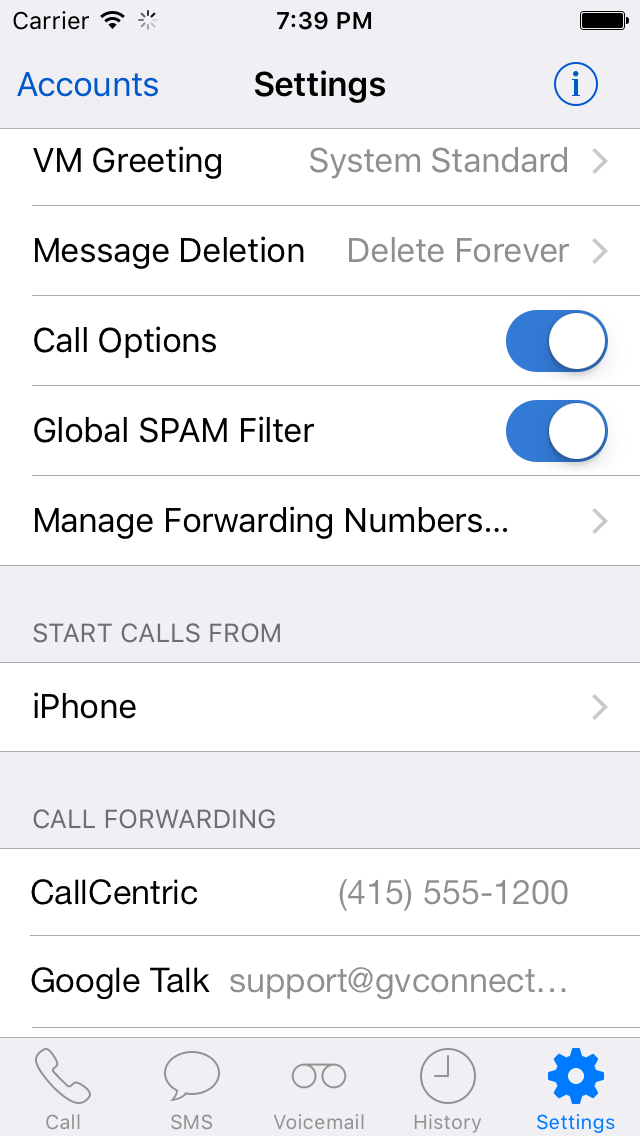
Settings View (continued)
• Change the default voicemail greetings callers hear (record greetings on the Google Voice website)
• Define behavior when deleting conversations or calls (delete forever or move to Trash)
• En-/disable call options for incoming calls (recording [4], switch [*], and conferencing)
• En-/disable global SPAM filtering for your account — see this Google Voice blog entry for a detailed explanation of this feature
• Add, verify, or remove (using swipe to delete in the list) forwarding numbers connected to your Google Voice account
Start Calls From
• Select the first item to select which of your verified numbers should receive a call back when starting a call
Call Forwarding
• This section lists all verified phone numbers connected to your Google Voice number — phone numbers that will ring on incoming calls are marked with a checkmark
• Select any phone number in the list to toggle its forwarding status
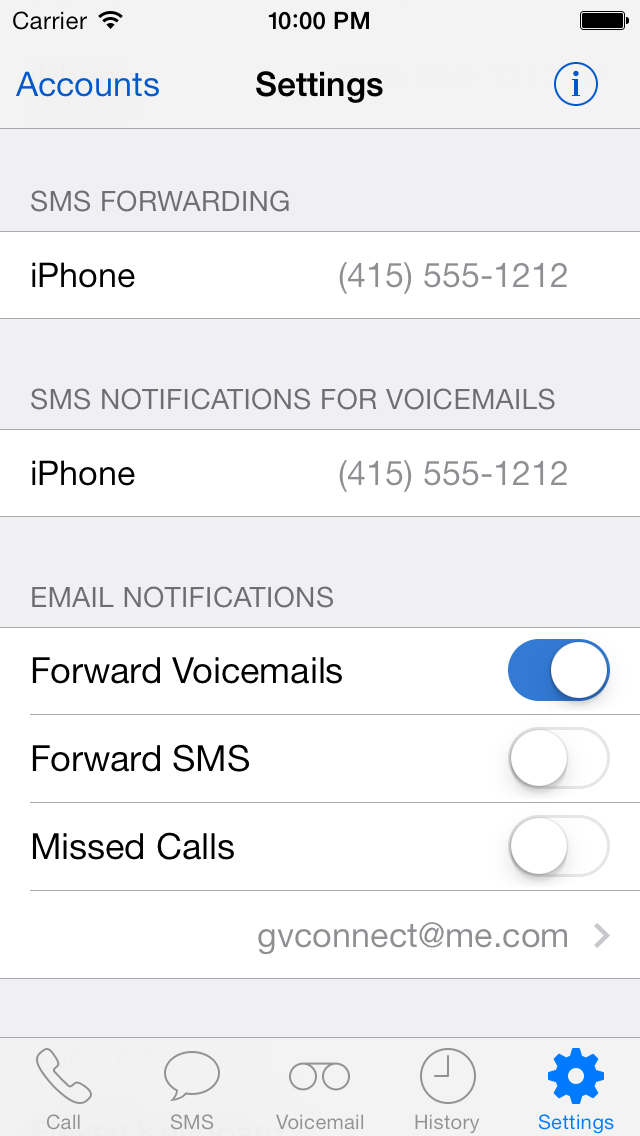
Settings View (continued)
SMS Forwarding
• Verified mobile phone numbers attached to your account that will receive SMS messages sent to your GV number are marked with a checkmark (note that enabling SMS forwarding might incur charges on you mobile phone account)
• Select any phone number in the list to toggle its forwarding status
Google disabled SMS forwarding for the Google Voice service in August 2021. All SMS forwarding settings have now been removed from GV Connect.
Email Notifications
• En-/disable Email notifications for incoming voicemails, SMS, or missed calls to the address indicated — if you have more than one Email address registered on your Google account you can select which one the notifications should be forwarded to by selecting the Email address.
Settings View (continued)
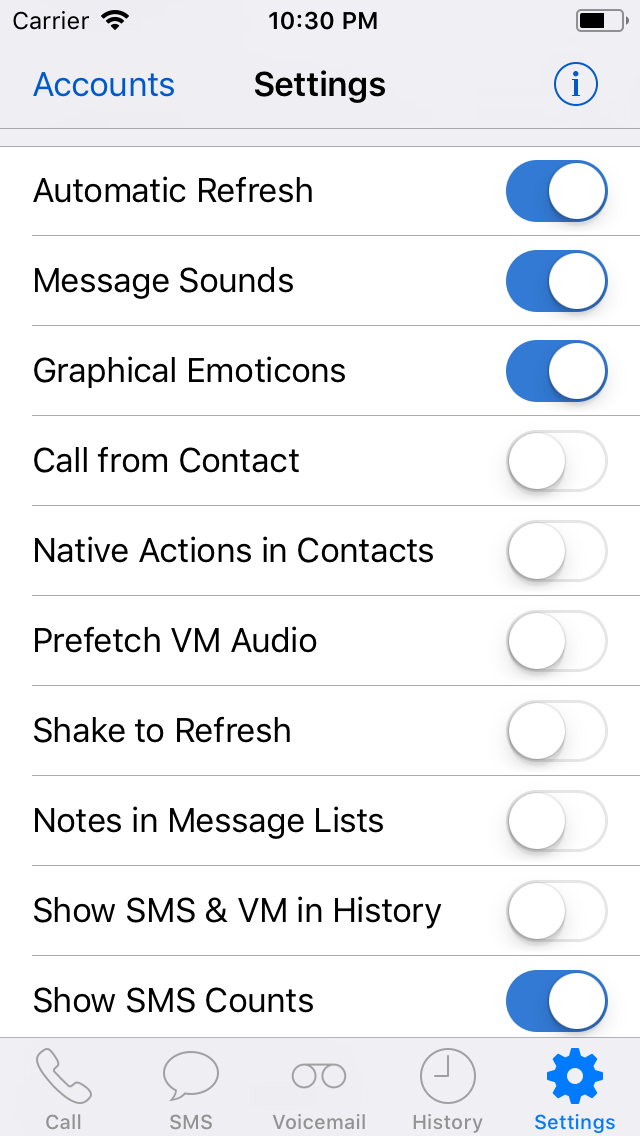
GV Connect Settings
• En-/disable automatic refresh — if automatic refresh is enabled, the application will keep polling your account for new unread messages while active (note that this might cause increased battery drain and could incur data charges)
• En-/disable message sounds — alert for new unread messages and after successfully sending an SMS while the application is active using an alert sound
• En-/disable graphical emoticons in message displays — replace textual emoticons with graphical equivalents (note that this applies for the message display only, the message is sent as typed)
• Change behavior when selecting a phone number from the contacts or favorites in the dial pad — with "Start call from contact" enabled, the call will be automatically started after selecting the number to call, bypassing the need to explicitly tap the "Call" button after selection
• Enable "Native Actions" in contacts cards to allow placing calls and sending messages via other applications (e.g., to place calls via Hangouts). If this is disabled (default), the user will be asked whether to call or text a number via GV Connect when selecting any phone number from a contact card
• En-/disable automatic prefetching of audio files for voicemails – if pre-fetching is off, audio files will be downloaded the first time you listen to a VM (and cached on the device after that for faster access later); with pre-fetching on, the audio files will be downloaded and cached on the device automatically when a new voicemail is received (note that enabling pre-fetching can potentially increase your data usage charges).
• En-/disable "Shake to Refresh" in message lists to allow for better accessibility when using VoiceOver
• Toggle behavior of message list previews to either show the standard details (last SMS messages, VM transcription, or call details) or the contents of the note attached to the conversation (if present - default details will be shown for conversations without notes)
• Select whether to show calls only or all items (calls, SMS, and voicemails) in the History view
• Select whether or not to show number of messages after the contact name/number for conversations in the SMS list
• En-/disable TextExpander integration for automatic snippet expansion
• Toggle the primary action (short press) of the contacts button in the dial pad and the contacts button when composing a new SMS. The primary action can be selected as either access to the device's full Address Book or to the in-application Favorites — the other action is accessible by holding down the buttons
• Toggle keyboard return key behavior when composing a new SMS (either enter a new line/return character or immediately send the message)
• Specify which conversation types should be used to indicate the unread item count on the application badge (SMS, Voicemails, or both)
• Turn application passcode on or off. Note: the application passcode is securely stored in your application's keychain. If you forget your passcode there is no way to recover it - you will have to delete and re-install the application (which will delete all cached messages and data)
• Allow to clear the local data cache for the currently selected account on your device — this allows you to free local storage space (especially with a large amount of local audio files) and re-synchronize data with your account (in case you deleted messages directly on the website as they will still be present on your device). You can also clear the local cookie storage in case you are encountering authentication issues with your account
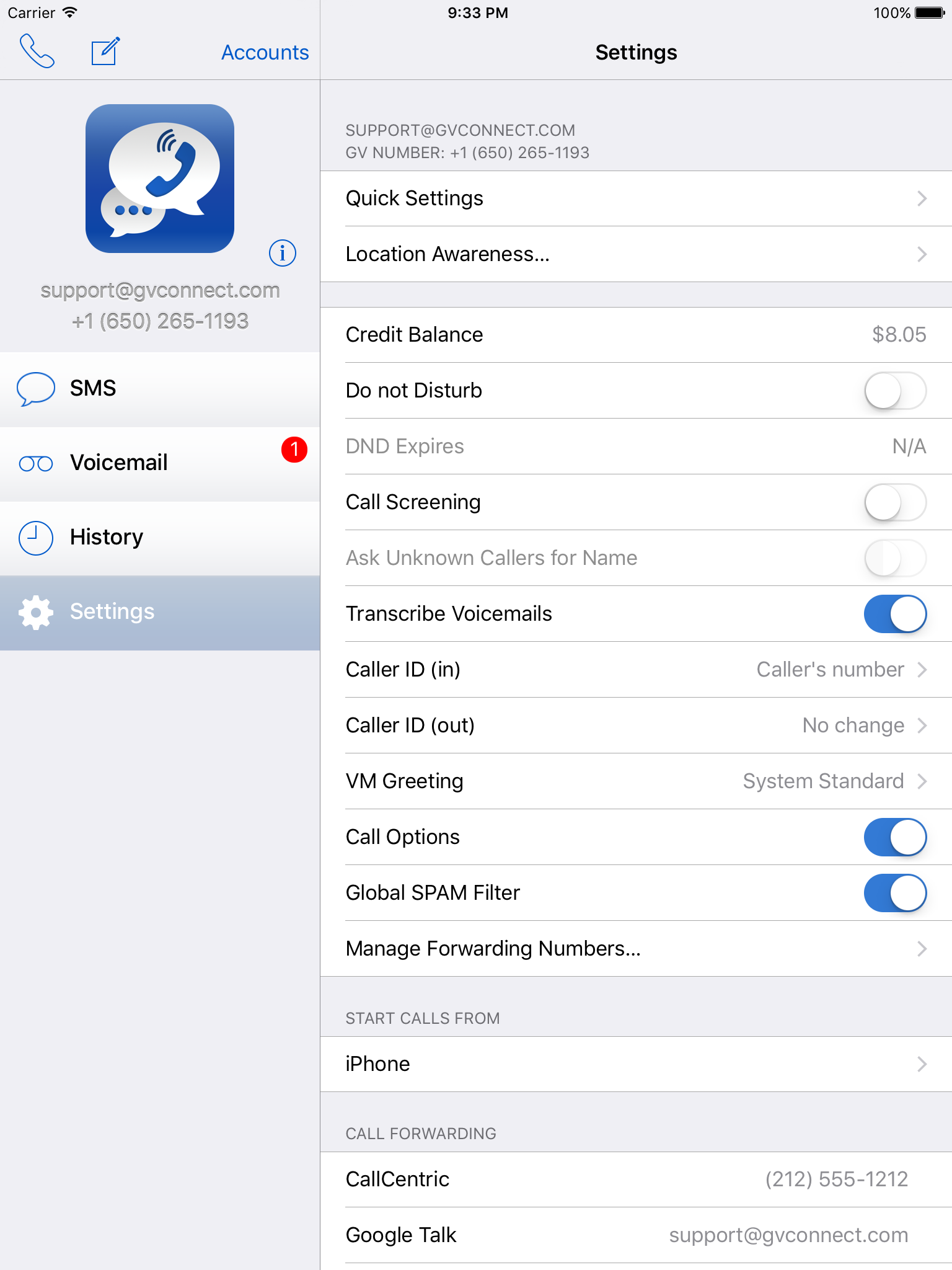
iPad interface
The iPad interface allows for all the same operations as the iPhone/iPod Touch version but has a few differences:
• The dial pad to place calls is presented in a popover (from the little phone icon at the top left of the interface) and is accessible regardless of the current context.
• The 'Accounts' and new SMS compose buttons are accessible at all times regardless of the selected view - this allows to quickly switch between accounts while staying within the current view.
• The username and GV phone number of the current account are always visible below the application icon on the left - this allows to quickly identify which account is active if more than one account is set up.
• Unread SMS conversations and voicemails are indicated with a red indicator next to the entry in the list on the left.
What are all the calling options supported in GV Connect and how do they work?
GV Connect currently supports the following options to place a call from your Google Voice phone number:
- Callback: when placing a call, you will receive a call from your own Google Voice number to the selected callback number (shown in the "Call" button on the keypad or in the "Start Calls From" section in the Settings tab). Just answer the incoming call and you will be automatically connected to the number you are calling.
Note that selecting your iPhone's number as the callback number might use calling minutes from your cell phone plan — if your cell phone account supports unlimited calling to a list of numbers, you might be able to add your own Google Voice number to your list of preferred numbers to avoid depleting your monthly minutes when using your Google Voice number.
- Direct Call (iPhone only): after selecting "Direct Call" as the "Start Calls From" setting in the application, calls will be made by calling a temporary Google access number which will directly connect to the number you wish to call. Please note that this access number is temporary only — if you try to redial it form the iPhone's recent call list you will hear a recorded "cannot complete your call" message. Also note that the access number is assigned by Google on a per-call basis – GV Connect has no control over what access number is used to place the call.
In order to direct calling to work, your iPhone's number needs to be added as a "mobile" forwarding number to your Google Voice account. Using direct call might use calling minutes from your cell phone plan.
- iPhone Dialer (iPhone only): calls will be placed through the iPhone's native phone application, using your iPhone's phone number as the Caller ID. This allows for faster connection of calls, requires no data connection, and can be especially useful if you use your provider's Google Voice integration for your iPhone's number (e.g., with Sprint as the provider).
Please note that this option might use calling minutes from your cell phone plan and could potentially incur large calling costs with your carrier – especially if you are placing international calls.
- Offline Dialing (iPhone only): using any of the above calling methods (other than "iPhone Dialer") on an iPhone when data access is currently unavailable, you will be asked whether you want to place the call in "offline mode" — this will call your own Google Voice number and then automatically dial through the voice prompts to connect you to the number you wish to dial.
This option requires that your iPhone has been added as a "mobile" forwarding number to your Google Voice account and that you set up your iPhone on the Google Voice website to directly connect to your voicemail (Settings → Phones → click the "Edit" button below your iPhone's number → "Show advanced settings" → "Direct access to voicemail when calling your Google number from this phone?" set to "Yes").
Note that placing a call using offline dialing is rather slow (typically 30+ seconds until the target number is called) and that it might use calling minutes from your cell phone plan.
The badge number shown on the application icon doesn't seem to match the actual number of unread messages within the application
The application badge shows the total number of unread items (SMS and Voicemails) in your account. The badge numbers for the individual items inside the application show only the number of unread items that are available locally on your device. Most likely you have older unread items in your account that are not available locally on your device - you can search for all unread items (and mark them as read as required) by entering "is:unread" (without the quotes) in the search field on the GV website when visiting it with a desktop browser. To mark all those messages as read without having to do so manually in badges you could also try to use this script.
I selected 'Google Talk' for the callback ("Start Calls From") and never receive a call back
To answer the 'Google Talk' callback you need to answer the callback from a Desktop browser while logged in to your GMail account. In order to answer calls from your device without any third-party applications you need to select your mobile number to start calls from (or an SIP number connected to your GV number and answer the incoming call from a separate SIP application).
I receive an 'Invalid Number' error message for every number I try to call — I'm sure that the number is correct!
You have to enter the number in one of the following formats:
• '+ [COUNTRY CODE] [AREA CODE] [NUMBER]' – (e.g., '+1…' for US/Candian numbers)
• '011 [COUNTRY CODE] [AREA CODE] [NUMBER]' – for international numbers outside the US/Canada
• '1 [AREA CODE] [NUMBER]' or '[AREA CODE] [NUMBER]' – for numbers in the US/Canada
• '[7–DIGIT NUMBER]' – for US numbers with the same area code as your GV phone number
If you still get the error with numbers entered in on of the above formats, make sure that you have a GV phone number (and are able to use Google Voice outside the GMail web client) and have at least one actual phone number defined as a forwarding number on your Google Voice account on the website and select that number in the "Start calls from" setting — if your only number connected to your Google Voice number is your 'Google Talk' account you will get the 'Invalid Number' error.
I have to re-enter my login information every time the application is started
Your username and password are stored securely in your device's Keychain. In order to ensure that Keychain data is well protected, there are several security checks performed by the system — if any of these fail, the password cannot be stored, resulting in you having to re-enter it the next time the application is launched. If you encounter this issue, please make sure that your device is running the latest system software and that no custom modifications have been done on any of the system files as those might result in failure to properly access the Keychain.
I don't have a Google Voice account — do I get one when buying GV Connect?
No — an existing full Google Voice account (including GV phone number) is required in order to use GV Connect.
If you don't have an account already, you can request an invitation for a new account (currently available to US residents only).
If you can make calls from within GMail on a desktop browser only, you have to upgrade your Google Voice account to a full account (with an actual phone number) using the following steps:
- In GMail, click the Call phone link in the Chat list
- From the Call window, click your current account balance and select "History" or "Add credit"
- Once in Google Voice (which will open in a new window), click the "Get a Google Number" button on the left
- Complete the upgrade steps including picking your new Google number
Can I access my Google/Google Voice contacts from within GV Connect?
Yes — if you set up your Google account using the Exchange protocol (see these instructions on how to do this), all your Google/Google Voice contacts will be accessible from within your device's Contacts application and thus be available to GV Connect (and all other applications as well).
Does GV Connect support Push Notifications for new messages?
Not at this moment — see the section about Push Notifications below for current solutions. However, the application will check for new messages in the background and present a notification in the notification center - selecting this notification will open the application directly to the new message.
How will I get charged for calls and SMS when using GV Connect?
Sending and receiving text messages using your Google Voice number are free (data charges might apply). Note that Google Voice currently does not support international SMS.
When making calls with your Google Voice number using your iPhone, normal calling charges (based on calling your own Google Voice number) apply.
For international outgoing calls placed from your Google Voice number, international calling rates apply (charges will be deducted from your Google Voice account balance) — calling is available worldwide.
Since all the data accessed by GV Connect is located on Google's servers, there is currently no way to provide push notifications unless you would be willing to either store your Google Voice account information on a third-party server (which would essentially give that party full control of your account) or forward all your SMS and VM notification emails to a third-party email address. As GV Connect currently communicates with Google's servers only, your account information is safe and well protected. Providing push notifications directly within GV Connect would require setup of an additional account on my server in order to be able to redirect the push notifications correctly — this makes the separation between credentials and user data much less clear and would require a large amount of trust on the side of the user.
That said, there are a few solutions available already to enable push notifications for new unread SMS and voicemails without having to potentially compromise your user credentials or data:
- The application will check for new messages in the background and present a notification in the notification center - selecting this notification will open the application directly to the new message. This requires that "Automatic Refresh" is enabled in the Settings view, that "Background App Refresh" is enabled in "Settings → General," and that it is enabled for GV Connect in the list of allowed applications.
NOTE: if you manually force-close an application from the application switcher, background fetching will no longer work for that application until it is manually re-launched. Don't kill GV Connect from the application switcher or background fetching of new messages will cease to work.
- Prowl: add your Prowl email address ([yourapikey]@api.prowlapp.com) to your Google account (you will have to go into Prowl to approve the verification message from Google) then use the settings view to set the Prowl email as a forward address. Push notifications will open (via Prowl redirect) directly in GV Connect
This solution requires enabling email notifications for SMS & VM and forwarding them to Prowl
- GV Connect Dashboard Widget (MacOS X 10.7 or higher) + Prowl: use the generic "GV Connect" redirection in Prowl for the application name "GV Connect"
This solution works if you have access to a Mac that is connected to the internet at all times and it does not require passing your notification mails to a third party. However, the GV Connect Widget currently does not distinguish between new SMS and new VM in the notification title so you can't set up more detailed redirection settings in Prowl to directly open the application to a specific tab. Also, as the fasted polling interval in the Dashboard widget is one minute, notification can be delayed up to a maximum of one minute.
- Use the official Google Voice app: while Google's own application is severely limited in its features, you can enable its notifications to receive Push notifications without requiring to involve any other third party to do so. After receiving a Push notification from Google you would then have to manually open GV Connect to see the new message.
GV Connect supports the following URL schemes for launching the application and execute custom actions (please note that all URL handlers are case-sensitive and that all have to be properly URL-encoded. Most schemes also support adding an additional "account=[ACCOUNT_NAME]" parameter to specify which account to switch to when using multiple accounts):
- gvconnect:// – generic URL to launch the application (it will resume in its previous state)
- gvconnect://[TAB] (where "[TAB]" is replaced by one of "call", "sms", "vm", "history", or "settings") – launch the application and show the specified tab
- gvconnect://call?[NUMBER] (where "[NUMBER]" is replaced by a phone number) – launch the application to the dial pad with the specified number entered; simply press "Call" to start the call. Use "FAVORITES" (without quotes) in place of "[NUMBER]" to open to your in-app favorites list in order to select one of your favorites to call.
- gvconnect://call?number=[NUMBER]&callmethod=[CALLMETHOD] (where "[NUMBER]" is replaced by the phone number to be called and "[CALLMETHOD]" is replaced by the calling method to be used — use either the forwarding phone's name or phone number or use "DirectCall" to use the direct call method on the iPhone) – launch the application and initiate a call to the specified number using the specified calling method. Use "FAVORITES" (without quotes) in place of "[NUMBER]" to open to your in-app favorites list in order to select one of your favorites to call.
- gvconnect://sms?[NUMBER] (where "[NUMBER]" is replaced by a phone number) – launch the application to a new SMS compose window with the specified number as the recipient (enter up to five numbers, separated by commas, to compose a group SMS).
- gvconnect://sms?number=[NUMBER]&message=[MESSAGE] (where "[NUMBER]" is replaced by a phone number (or up to five numbers, separated by commas, to compose a group SMS) and "[MESSAGE]" is replaced with the — properly URL-encoded — message text; you can supply one or both parameters when using this syntax) — launch the application to a new SMS compose window with the specified number as the recipient and the message already pre-filled (ready to send)
- gvconnect://quicksetting?[NAME] (where "[NAME]" is replaced with the — properly URL-encoded — name of a Quick Setting) — launch the application (to the same place it was previously opened) and switch to the specified Quick Setting (if a Quick Setting with the given name exists for the current account)
At this moment GV Connect is not an SIP/VoIP client and thus does not allow to make phone calls using data only (e.g., using your 'Google Talk' number as a callback number and place calls without using any of your cell phone account's minutes). However, using a third-party application you can do so (meaning the following works on an iPad or iPod Touch as well):
Using a CALLCentric phone number
- Sign up for a free SIP account with CALLCentric - this will give you free incoming calls with a real phone number
- Add your new CALLCentric phone number as a forwarding number to your GV account on the Google Voice website
- Use an SIP client (e.g., Groundwire or Softphone) on your device to set up your CALLCentric account.
- Choose your CALLCentric number as the "Start Calls from" number in the Settings of GV Connect. Upon placing a call you will receive the callback on your phone and your SIP client application should present you with a push notification — simply answer that push notification and you will be connected to your target phone number using data only (WiFi or 3G if you have cellular data and allowed for 3G calls in your SIP application). If the VoIP application supports background operation you can also receive incoming calls to your GV number by answering them with your VoIP application as long as you enable your CALLCentric phone number in the "Call Forwarding" section in GV Connect's Settings
The following is a list of other applications that allow for interaction with GV Connect:
If you know of other applications that can interface with GV Connect please let me know and I'll add them to the list.
3.9.1 (May 21, 2023 – released on the iPhone App Store May 22, 2023)
- Adapt to recent changes to the login flow which resulted in the login not completing
3.9.0 (March 12, 2023 – released on the iPhone App Store March 20, 2023)
- Add support for for incoming contact cards (MMS In-App Purchase required)
- Fix layout issues when sending conversations as email
- Add video/audio/vcard attachments as attachments when sending conversations as email (MMS IAP required)
- Fix empty names in the navigation popup for back buttons in conversations
- Improve VoiceOver description for attachments in conversation view
- Fix login issues caused by recent server-side changes
Show full version history
Hide older version history
3.8.5 (February 4, 2023 – released on the iPhone App Store February 8, 2023)
NOTE: As of this version, the lowest supported iOS version is iOS 11.
- Fix login issues caused by recent server-side changes
- Fix image previous in conversation views showing at an incorrect size - to fix the cached previews, either clear the image cache (Settings > Clear Caches… > Clear image cache) or tap and hold an image shown at incorrect size and select the "Reload Image" menu entry.
3.8.4 (July 16, 2022 – released on the iPhone App Store July 20, 2022)
- Show VoIP devices connected to the account and allow changing their forwarding status (e.g., obihai devices).
3.8.3 (June 16, 2022 – released on the iPhone App Store June 17, 2022)
- Fix incorrect account balance display.
- Various stability improvements based on user-submitted reports.
3.8.2 (June 5, 2022)
- Resolve issue where the application would get stuck on the login screen or show the Google Voice web interface.
3.8.1 (May 29, 2022 – released on the iPhone App Store May 30, 2022)
- Fix crash when running on older versions of iOS.
- Force re-login if the account is reported as signed out.
- Various stability improvements based on user-submitted reports.
3.8.0 (May 21, 2022 – released on the iPhone App Store May 23, 2022)
- Update the application to deal with the removal of the "legacy" settings from the Google Voice website. Unfortunately that meant removing om settings that are not longer supported but resolves the issue where the application would get stuck at the "Loading Settings…" screen.
3.7.0 (April 10, 2022 – released on the iPhone App Store April 12, 2022)
- Remove DND expiration settings (Google Voice no longer supports them).
- Update to the new callback API to fix errors when trying to place calls using the callback option.
- Fix various UI issues.
3.6.1 (September 19, 2021)
- Fix issue where the top navigation bar would be transparent on older versions of iOS.
3.6.0 (August 29, 2021)
- Remove all settings related to SMS forwarding since that feature has been disabled by Google.
- Various stability fixes based on user-submitted reports.
3.5.15 (August 7, 2021)
- Update API for detecting clipboard contents to not show the "copied from …" alert until actually using "Paste" on the call view.
- Various UI tweaks for users running iOS 15.
- Various stability fixes based on user-submitted reports.
3.5.14 (July 2, 2021 – released on the iPhone App Store July 3, 2021)
- Don't automatically fill the password from the current account when adding a new account
- Remove the "No More Messages" alert that would sometimes show up unexpectedly
- Various stability improvements based on user-submitted crash reports
3.5.13 (February 20, 2021 – released on the iPhone App Store February 21, 2021)
- Fix issue with conversations not loading and failure to send messages/place direct calls for newly added accounts
- Resolve failure to add contacts to the Google contacts and properly update the conversation info when a contact has been updated from somewhere else
- Various stability improvements based on user-submitted crash reports
3.5.12 (November 13, 2020 – released on the iPhone App Store November 14, 2020)
- Fix "404" error when displaying the login page.
3.5.11 (October 23, 2020 – released on the iPhone App Store October 24, 2020)
- Fix incorrect label for "Mark as Read" action when peeking a conversation
- Various performance and stability improvements based on user submitted reports
3.5.10 (October 17, 2020 – released on the iPhone App Store October 18, 2020)
- Restore missing calls initiated via call back in the history list
- Correct behavior of archive list and un-/archive actions
- Fix issue where the application would show an unread indicator for new message but not show the actual messages (especially after switching between accounts)
- Don't pre-fill the current account information when adding a new account
- Improve conversation size when peeking a conversation
- Work around an iOS bug causing the application to become unresponsive when peeking a conversation with lots of messages
- Use updated interface elements when running on iOS 14 or later
- Improve reliability of checking for new unread messages in when the applicaiton is in the background
- Various performance and stability improvements based on user submitted reports
3.5.9 (August 27, 2020 – released on the iPhone App Store August 28, 2020)
- Update to account for another server-side API change in order to restore message loading and sending.
- When re-entering the last dialed number on the dial pad, make sure it is properly formatted.
3.5.8 (August 13, 2020 – released on the iPhone App Store August 14, 2020)
- Update API endpoint to fix issue with messages not loading.
- Fix issue where the iOS status bar would be hard to read on an iPhone when the "New Message" view is displayed.
- Minor tweaks to the colors in the message list when in Dark Mode.
3.5.7 (April 26, 2020 – released on the iPhone App Store April 27, 2020)
- Clicking the "Call" button on the dial pad before entering any digit will now pre-fill the last dialed number.
- Various UI changes to better match the overall system appearance when running on iOS 13.
- When the application asks for login again due to expired credentials, it will now attempt to fill in the previously use username and password.
- Various stability improvements based on user-submitted reports.
3.5.6 (April 6, 2020 – released on the iPhone App Store April 7, 2020)
- Fix missing call icon at the top for iPads running iOS versions prior to iOS 13.
3.5.5 (March 21, 2020 – released on the iPhone App Store March 23, 2020)
- Make sure to show recorded calls again. Recorded calls now show up in both, the VM (since they add to the unread count for that view) as well as the History views.
- Fix crash when trying to share an animated image from the image preview.
- Fix crash when trying to share images or videos from the context menu in the conversation view on an iPad.
- Resolve issue where the most recent messages or VMs were missing until reloading the view after switching to the respective view when the history view was previously refreshed.
- Various stability improvements based on user submitted reports.
3.5.4 (March 6, 2020 – released on the iPhone App Store March 7, 2020)
- Various stability improvements based on user submitted reports.
3.5.3 (February 22, 2020 – released on the iPhone App Store February 23, 2020)
- Correct message date display on 32-bit devices (e.g., iPhone 5) so that they show the correct date rather than January 1970.
- Remove forwarding number management (hopefully only temporarily) as the previous method no longer works and the current method doesn't seem to be stable/fully working yet.
- Update the crash reporting framework used for custom crash reports.
3.5.2 (January 31, 2020 – released on the iPhone App Store February 1, 2020)
- Fix issues starting the application via URL schemes if one of the parameters had an unescaped "?" in it.
3.5.1 (January 23, 2020 – released on the iPhone App Store January 24, 2020)
- Resolve failure to send text messages containing newlines and other certain special characters.
3.5 (January 21, 2020 – released on the iPhone App Store January 22, 2020)
- Updated application to use the new protocol to retrieve messages after the previously used one was turned off by Google. This resolves the issue with the application not loading new data but instead repeatedly showing a login dialog.
3.4.5 (December 8, 2019 – released on the iPhone App Store December 9, 2019)
- Updated protocol to support server-side changes for Direct Call.
- Fix deleting conversations from the context menu in iOS 13.
- Use the correct icon for the "Archive" action when swiping in the message list.
3.4.4 (October 18, 2019 – released on the iPhone App Store October 19, 2019)
- Fix issue where the local time for the number being called would not always show on the dial pad after selecting a number from the favorites.
- Fix problem where sometimes incorrect items would show in the message list after switching accounts from the active message list tab.
- Haptic Touch improvements on iOS 13.
- Various stability improvements based on user-submitted reports.
3.4.3 (September 29, 2019 – released on the iPhone App Store September 30, 2019)
- On devices running iOS 13 or higher, use "Haptic Touch" in the message list.
- Work around issue where a long touch on the "Add Contact" button in the new message's address field didn't work as expected when running iOS 13.
- Fix delay when switching to the Settings tab and QuickSettings detail view.
- Various stability improvements based on user-submitted reports.
3.4.2 (September 22, 2019 – released on the iPhone App Store September 25, 2019)
- Fix editing issues in the Favorites view when running on iOS 13.
- Resolve crashing when trying to open the Info/Help view running on iOS 9.
3.4.1 (September 18, 2019 – released on the iPhone App Store September 20, 2019)
- Fix crashing on application start some users have been experiencing.
3.4 (September 14, 2019 – released on the iPhone App Store September 16, 2019)
- Support for "Dark Mode" on iOS 13.
- Show a thumbnail placeholder for videos rather than a "tap to play" placeholder text.
- Fix issues where some audio/video attachments at times would fail to display.
- Fix display issues for some attachments in the SMS conversation view.
- In the message list, prefix the last message in a group SMS with the sender's name or number.
- Properly show email addresses for group messages where a contact is email- rather than phone-based.
- Fix some login issues caused by invalid cached credentials.
- Remove setting for "Voicemail via SMS" since Google removed this option entirely.
- Remove some unsupported conversation actions for group messages.
- Various UI tweaks and stability improvements.
3.3.5 (May 11, 2019 – released on the iPhone App Store May 13, 2019)
- Better detection of expired credentials – this should fix the issue where the application stops updating with new items.
- Remove actions (mark as spam, call back) that are not applicable for group messages.
3.3.4 (February 5, 2019 – released on the iPhone App Store February 6, 2019)
- Various stability improvements based on user-submitted reports.
3.3.3 (January 29, 2019 – released on the iPhone App Store January 30, 2019)
- Fix crash introduced in the previous version that would occur when editing an existing QuickSetting for accounts with at least one linked number on devices where the Location Awareness IAP is available.
3.3.2 (January 28, 2019 – released on the iPhone App Store January 29, 2019)
- Add (SMS-only) support for accounts without linked numbers - Settings are now accessible and the accounts are properly saved.
- Change "Forwarding Phones" to "Linked Numbers" to match the new nomenclature used on the Google Voice website.
- Various stability improvements based on user submitted reports.
3.3.1 (January 3, 2019 – released on the iPhone App Store January 4, 2019)
- Fix crash introduced in the last version that could occur for messages with multiple attachments.
3.3 (December 31, 2018 – released on the iPhone App Store January 2, 2019)
- Playback support for audio and video attachments in MMS messages (requires MMS In-App Purchase).
- Complete overhaul of the login process. This should provide much better stability against future changes on the server side and now also supports 2-Factor Authentication via the "Google Prompt" method.
- Fix "unknown error" when adding a new forwarding number.
- Fully support the latest devices and screen sizes.
3.2.5 (September 21, 2018 – released on the iPhone App Store September 22, 2018)
- Improvements to login process when additional information (e.g., captcha, email verification) is required to complete.
- Improvements for grouped notifications on iOS 12.
- Add full support for the latest phones.
3.2.4 (July 7, 2018 – released on the iPhone App Store July 9, 2018)
- Work around an issue where the in-line SMS reply field would not properly expand its size when using Siri dictation.
- Fix some display issues that could appear when first showing the actions menu for a conversation.
3.2.3 (June 12, 2018 – released on the iPhone App Store June 13, 2018)
- Add support to use iBeacons in Location Awareness. This allows for more fine grained control over locations as well as moving locations (e.g., in a car).
- Improve login process to prevent an issue with the application getting stuck in "Authenticating…" some users were experiencing.
- Correct a problem where the default location might become disabled when deleting other locations.
- Don't start monitoring for new locations if Location Awareness is turned off when creating them.
- Fix button placement for the in-line SMS reply on the iPhone X when the keyboard is not showing.
- Various stability improvements based on user submitted reports.
3.2.2 (April 8, 2018 – released on the iPhone App Store April 9, 2018)
- Fixes for login issues some users are experiencing
3.2.1 (March 27, 2018 – released on the iPhone App Store March 28, 2018)
- Add a new setting to control what call/message types should show notifications
- Fix an issue on iOS 11 where the VoiceOver Accessibility Rotor would not read the actions available for items in the message lists
- Other minor improvement for VoiceOver accessibility
- Various stability improvements based on user submitted reports
3.2 (February 13, 2018)
- Major rework of Quick Settings and Location Awareness:
- Allow inspecting and changing of existing QuickSettings by tapping the entry in the list while in editing mode
- Location Awareness is now moved to the Quick Settings screen in order to change connected settings in one place (changing locations for a given Quick Setting is accessible when editing the Quick Setting)
- Allow renaming of existing Quick Settings (via swiping left on the entry in the list of Quick Settings)
- Properly update the current QuickSetting in the Settings view after manually changing settings
- Show correct preview for voicemail messages in the history list (if the setting to show SMS and VMs in the History is enabled)
- Fix issue related to hiding the "Add Contact" button in the conversation view if the contact is already present in all available contact sources
- Prompt user to download voicemail audio to attach to generated email if the audio isn't already present on the device
- Allow leading swipe to mark as un-/read on iOS 11 for SMS and VMs in the History list as well
- Fix missing phone number for SMS and Call History items on iPad when the contact is present in the address book
- Modernize the call type icon overlays in the History list
- Improve handling of notifications for missed calls
- Various UI tweaks and stability improvements
3.1.14 (January 27, 2018 – released on the iPhone App Store January 29, 2018)
- Add a leading swipe action to message lists to mark SMS conversation/VM as (un-)read (requires iOS 11 or higher)
- When adding a contact to the iOS address book from a conversation, the application now offers the option to add the number to an existing contact rather than creating a new one
- Allow access to the contact card for an existing contact by tapping the contact picture at the bottom of the conversation in addition to tapping the title of the conversation
- Add a new preference setting "Native Actions in Contacts" to use default actions when selecting a phone number in a contact's card within the application rather than re-routing the action to GV Connect. This allows to place outgoing calls via Hangouts or other applications
- Various UI tweaks and stability improvements
3.1.13 (January 19, 2018 – released on the iPhone App Store January 20, 2018)
- Fix issue where the AppStore build for the previous version would not show the biometric authentication screen when the application is first launched and where the application-specific password could not be disabled.
3.1.12 (January 18, 2018 – released on the iPhone App Store January 19, 2018)
- When looking at the list of contacts for a group message (by tapping the "Group Message" header in the conversation view), individual contacts can now be added to the iOS Address Book and contacts cards can be displayed for contacts already present in the Address Book.
- Tapping a phone number in a contact card for a conversation, voice mail, or call history item now allows to call or send a text message to that number.
- Improve handling of biometric authentication dialogs during phone calls.
- Fix corner case that could lead to the application passcode lock being disabled without user interaction in rare cases.
- Make sure that the phone number to call is properly populated when opening the application via URL scheme if it wasn't already active in the background.
- Various UI tweaks and stability improvements.
3.1.11 (January 8, 2018 – released on the iPhone App Store January 9, 2018)
- Fix issue which could lead to a crash for group messages where some of the contacts had " (" in their name.
- Make sure that switching accounts via re-selecting the current view tab on the iPhone works immediately after adding a second account.
- Add "Tip Jar" In-App Purchase in order to allow showing your appreciation for the continued development and support for GV Connect – now already more than seven years!
- Various stability and performance tweaks.
3.1.10 (January 3, 2018)
- Fix login failures for accounts where the password contains certain special character
- Add support for Dynamic Text sizing in the About view
- Make sure to properly display contact information for group messages in all places (it might have shown a single contact name in some instances previously)
- Short phone numbers (e.g., SMS short codes) are now correctly looked up from the contacts list
- Add per-message sender information to group messages forwarded via email
3.1.9 (December 29, 2017 – released on the iPhone App Store December 30, 2017)
- Fix issue where lookup of contact information (e.g., showing contact names rather than phone numbers) could be slower than what it should be and hass been previously
- Add safeguards against presenting notifications for old or sent messages
- The latest update introduced a bug that could lead to some crashing – sorry about that and we've made sure to resolve this issue in this version
3.1.8 (December 21, 2017 – released on the iPhone App Store December 22, 2017)
- On iOS 10 and higher, show incoming pictures in the notification (requires MMS In-App purchase)
- Add "Send SMS" swipe action to entries in the history
- Don't display the Face ID/TouchID dialog during an ongoing call
- Various UI tweaks and stability improvements
3.1.7 (December 1, 2017 – released on the iPhone App Store December 3, 2017)
- Restore smooth scrolling to conversation views when running on iOS 11
- Fix initial scrolling to latest message when first showing a conversation on iOS 11
- Various stability improvements based on user-submitted reports
3.1.6 (November 26, 2017 – released on the iPhone App Store November 27, 2017)
- Correct layout issues with large animated GIFs in the conversation view
- Fix various layout issues when zooming or rotating images in the full screen view
- Fix issues with the in-line SMS reply sometimes not sizing correctly
- Various stability improvements based on user-submitted reports
3.1.5 (November 21, 2017 – released on the iPhone App Store November 22, 2017)
- Fix crash when trying to attach an image from the camera to an MMS message
3.1.4 (November 19, 2017 – released on the iPhone App Store November 20, 2017)
- Support for animated GIF images in MMS messages (with MMS In-App Purchase)
- Fix incorrect time stamps when forwarding a conversation via email
- Correct minor UI issues when forwarding a conversation with images via email
- Correct issue where the option to choose the current clipboard image would sometimes not show up as expected
- Make sure that the "New SMS" application shortcut using 3D Touch works correctly even when an application passcode is set
- Fix display of SMS and Voicemail conversations while peeking from the message list using 3D Touch
- Position the actions menu in the conversation view so it is not partially behind the notch when using the iPhone X in landscape
- Fix issue where a warning about "Google Prompt" 2-Factor Authentication could show up incorrectly when logging into a new account
- Display the attachment's mime type for unsupported attachments
- Fix various minor UI issues when running on the iPhone X
- Rework some critical code to prevent deadlock/crash
3.1.3 (November 2, 2017)
- Various UI tweaks for iPhone X.
- Fix placement of conversation action menu in iOS 11.1.
- Misc stability improvements based on user submitted reports.
3.1.2 (October 7, 2017 – released on the iPhone App Store October 8, 2017)
- Fix login failures for accounts that have 2-Factor Authentication enabled.
- Fix crash when saving a photo from the full screen preview to the photo library on iOS 11.
- Correct minor UI issue when swiping to delete individual messages from a SMS/MMS conversation on iOS 11.
3.1.1 (October 3, 2017 – released on the iPhone App Store October 4, 2017)
- Drag and drop on iOS 11: Add support for dragging images from MMS conversations or full-size image previews to other applications and dragging images from other apps to new picture messages or replies.
- Minor UI improvements when using iOS 11's "Smart Invert" feature.
- Various stability improvements based on user-submitted reports.
3.1 (September 18, 2017 – released on the iPhone App Store September 19, 2017)
- Updated application to fully support and embrace iOS 11 and the iPhone X.
- Improve handling of incoming MMS attachments that are not supported by Google Voice – they are now listed as "[Unsupported Attachment]" in the conversation view.
- Miscellaneous stability improvements.
3.0.4 (August 12, 2017 – released on the iPhone App Store August 17, 2017)
- Fix issue where sent images in MMS conversations would sometimes show up corrupted
3.0.3 (July 22, 2017 – released on the iPhone App Store July 24, 2017)
- Improve user feedback for login failures with accounts using 2-Factor Authentication using the "Google Prompt" method
- Various stability improvements based on user-submitted crash reports
3.0.2 (May 5, 2017 – released on the iPhone App Store May 8, 2017)
- Add option to attach current clipboard image (if present) to an outgoing message. This allows pasting images from various image keyboard (e.g., Bitmoji) into messages
- Fix issue with "Send" button for conversation replies not always being enabled correctly (e.g., with TextExpander installed but disabled in the Settings)
- Fix issue where the application would generate repeated new message sound alerts
- Add entry for MMS Support to the Settings to improve discoverability
- Various stability improvements based on user-submitted crash reports
3.0.1 (May 2, 2017 – released on the iPhone App Store May 3, 2017)
- Fix potential crash when first upgrading existing accounts
- Fix crash when acknowledging camera/image library privacy alerts
3.0 (May 1, 2017 – released on the iPhone App Store May 2, 2017)
NEW FEATURES:
- Support for native group messages and MMS (picture messages). MMS support requires purchase of a one-time In-App Purchase for activation.
- All SMS messages to/from a single phone number are now grouped into a single thread rather than broken up into arbitrary conversations. Older messages in a thread (if available) can be loaded using "pull to refresh" at the top of the list.
- Each message in an SMS conversation now has a full date & time stamp rather than just showing the time of day.
- Added the ability to delete individual messages in an SMS conversation (using swipe-to-delete).
- Allow marking messages as (not) Spam independently of (un-)blocking phone numbers.
- Blocked numbers/contacts are now shown with a blocked icon in the message lists.
CHANGES IN BEHAVIOR:
- Removed "Trash" entry in message lists and "Move to Trash" action for messages (this feature is no longer supported by Google Voice). "Delete" will now immediately and completely delete an item.
- Starred messages and conversation notes are now application-specific (with no syncing between devices) since Google removed those features as well.
OTHER IMPROVEMENTS & BUG FIXES:
- Massive speed increase when loading SMS conversations with a large number of individual messages.
- Optimized interface to the Google Voice servers to reduce the amount of data used.
- When replying to an incoming SMS directly from the notification without opening the application, the message will now be automatically marked as read.
- Update the protocol for verifying forwarding phones to the latest version so that it works again.
2.6.2 (January 28, 2017 – released on the iPhone App Store January 30, 2017)
NOTE: This version does not include any of the new features (MMS, group messaging) just introduced by Google yet. It is a quick release to restore functionality which broke due to the server-side changes. Support for the new features will be added in a future release.
- Fix login failures caused by the new Google Voice interface just introduced by Google.
- Fix potential crash when starting the application with the Settings view active if forwarding numbers have been added or removed from outside of the application.
2.6.1 (January 25, 2017 – released on the iPhone App Store January 26, 2017)
- Fix potential crashing of the application when upgrading from an earlier version due to changes in the contacts handling
- Fix issue where the contacts results list when composing a new SMS would not be properly dismissed when selecting an entry from the list while dictation was still active
- Make the "iPhone Dialer" calling method work again (it was broken in the previous version)
- Resize the login popover on the iPad when using the 1Password button so that the extension is immediately visible without the need to scroll to reveal it
2.6 (January 22, 2017 – released on the iPhone App Store January 24, 2017)
NOTE: Starting with this version, the minimum supported iOS version increases from iOS 8.0 to iOS 9.0 in order to be able to utilize new system features.
- Improve reliability of new message notifications when the device is locked (previously only the application badge would update reliably but the notification would not always appear).
- Update to use the latest iOS contacts framework. This fixes random issues with selecting phone numbers for unified contacts as well as some UI glitches related to contacts.
- Make the "Cancel Callback" button in the alert dialog after placing a call via callback actually cancel the callback again.
- Fix various UI issues when running on iPad in split screen (views incorrectly displayed as popovers instead of full split screen).
- Improve loading speed of Favorites list.
- Better handling of contact pictures for phone numbers that are attached to multiple contacts when only some of them have a contact picture.
- Fix issue where the application would ask for a 2-Factor code when it should have instead asked to verify the recovery email address.
- Resolve crash when trying to forward a SMS conversation or voicemail with an attached note as email.
- Add a slew of additional keyboard shortcuts when running on iPad (hold down the command key to see the list of shortcuts available in the current context).
- Fix various minor UI inconsistencies.
- Various other stability and speed improvements.
2.5.2 (December 19, 2016 – released on the iPhone App Store December 20, 2016)
- Use icons rather than text for the swipe actions in the message lists
- Fix issue with incorrect/incomplete swipe actions being shown for messages in the Trash
- Show status of TouchID setting in the "Passcode Lock" entry in the Settings view
- Add missing VoiceOver description to message list selection filter menu
- Dismiss message list selection filter popup when going to the background
2.5.1 (December 10, 2016 – released on the iPhone App Store December 13, 2016)
- Fix several UI issues with regards to using split screen multitasking on the iPad
- Fix random crash that could happen when selecting a phone number from the device contacts to place a call to
- Fix the most commonly reported crash that could happen when refreshing new messages
2.5 (November 29, 2016 – released on the iPhone App Store December 2, 2016)
- Add support for conversations and calls in Spam and Trash (including marking them as "not Spam" and recovering from Trash)
- New user interface for filtering message lists by call/message type (drop down instead of segmented control at the top of the message lists) in order to make room for the two newly supported types
- Add new setting to control behavior of message deletion (delete immediately or move to Trash) - the interface now clearly lists either "Delete" or "Trash" to make things as clear as possible
- Various stability improvements
2.4.8 (October 12, 2016)
- Extend the application's URL scheme to allow opening of favorites on the dial pad via URL
- Improve login for some older accounts that are not used for other Google services
- Fix crash when selecting a favorite for placing a call on the iPad
- Show a warning when access to Contacts for the application is restricted to better handle changes in iOS 10 that could lead to the application crashing when access was limited
- Various stability improvements
2.4.7 (July 10, 2016 – released on the iPhone App Store JuLy 11, 2016)
- Add new setting to disable message counts in SMS list
- Add new option to present notifications for location changes using Location Awareness
- Fix 2-Factor Authentication login when using SMS verification
- Fix issue where it was impossible to get out of the contact card after adding a phone number to an existing iPhone contact
- Various minor UI and stability improvements
2.4.6 (June 12, 2016 – released on the iPhone App Store June 13, 2016)
- Fixes issue where application failed to present 2-Factor Authentication Code prompt in some cases
- Allow using backup codes when logging in via 2-Factor Authentication
- Various stability improvements based on user-submitted reports
2.4.5 (May 26, 2016 – released on the iPhone App Store May 27, 2016)
- Implement "peek & pop" for message preview from the message list on devices supporting Force Touch. Message actions that are accessed by a long press in the message list on older devices can be accessed by swiping up during the peek on Force Touch capable devices
- Added new preference setting to show SMS and Voicemail in the History list in addition to calls
- In the Accounts list, show the account's GV phone number in addition to the username
- A long tap on the phone number at the bottom of a conversation now allows copying the phone number
- Fix visual glitch in the "Update TextExpander Snippets" cell in the Settings
- Fix issue where dismissing the date picker for DND expiration in the Settings could lead to a crash
- Update 1Password support to the latest version
- Various stability improvements based on user-submitted reports
2.4.4 (March 23, 2016 – released on the iPhone App Store March 24, 2016)
- Fix crash when adding/verifying forwarding numbers
- Various stability improvements based on user-submitted reports
2.4.3 (February 23, 2016 – released on the iPhone App Store February 24, 2016)
- Add support for account disambiguation when using a Google Apps account
2.4.2 (February 11, 2016 – released on the iPhone App Store February 12, 2016)
- Added new preference to disable Spotlight indexing of messages when an application passcode is set
- Improved protection against messages showing up as duplicates
- Fix text scrolling for the in-line SMS reply field
- Improve reliability of placing a direct call using the application's URL scheme
- Improve reliability for login using 2-Factor Authentication
- Dismiss the swipe action fields when placing a call form the call list so that the actions are no longer visible when returning to the application after the call has completed
- Add new icon size optimized for iPad Pro
- Various stability and performance improvements based on user submitted reports
2.4.1 (October 6, 2015 – released on the iPhone App Store October 15, 2015)
- Added support for 3D Touch QuickActions on supported devices (press firmly on the app icon to jump directly to a specific action)
- When running on iOS 9 or later, increase the refresh interval while the application is open from one to five minutes when low power mode is enabled
- Resolve an issue where the dialog to enter the 2-Factor Authentication Code was dismissed when entering background (e.g., switching to a different application to retrieve the code) which would prevent completing the login process for accounts with 2-Factor Authentication enabled
- Fix issues with the "Send" button not always correctly being en-/disabled when creating a new SMS
- Various stability improvements
2.4 (September 11, 2015 – released on the iPhone App Store September 16, 2015)
Note: as of version 2.4 the minimum system requirement is iOS 8 - older system versions are no longer supported.
Support for new features in iOS 9:
- Full support for split-screen multitasking on supported devices
- Messages are indexed in order to show up in global Spotlight search results
- Compose and send SMS replies directly from the notification without opening the application
- When using TouchID, automatically unlock the application if the device has been unlocked by TouchID within the last 30 seconds
Updates & improvements for all supported versions of iOS:
- Add support for Handoff between devices when composing SMS
- Allow specifying the account when starting the application via URL in order to perform actions for a given account regardless of the currently selected one
- Reworked passcode screen for a more consistent UI and allow accessing TouchID again after canceling it
- On the iPhone, hide the tab bar when showing a conversation to avoid accidental tab switching when trying to open the reply field
- Faster account switching: re-selecting the current tab on the iPhone now shows the account list for quick changing of accounts from the current view (if more than one account is set up)
- Improve error messages for and recovery from login failures
- Improve automatic refreshing of message lists after returning from background operation
- Fix issue where the application would sometimes wrongly complain about lack of network connectivity
- Put the application on a diet, slimming down the application size considerably – you now have even more room for selfies available on your device!
- Various UI tweaks for a more consistent appearance
- A plethora of performance and stability improvements
2.3.11 (July 25, 2015 – released on the iPhone App Store July 28, 2015)
- Fix login failures for accounts using 2-Factor Authentication.
2.3.10 (July 15, 2015 – released on the iPhone App Store July 16, 2015)
- Fix for recent login failures.
2.3.9 (June 4, 2015 – released on the iPhone App Store June 14, 2015)
- Improved compatibility for logins using 2-Factor authentication. This fixes the continuous loop during login that some users have been experiencing and avoids multiple prompts for the 2-Factor code entry.
2.3.8 (May 28, 2015)
- Re-wrote all authentication calls to account for Google closing down their ClientLogin interface without notice on 5/26/2014. Sorry for the unexpected downtime but we're sure that you will like this new version even better!
- Full support for 2-Factor authentication (you no longer need to create and use an application-specific password for GV Connect) - this includes re-adding the 'Direct Call' option for accounts using 2-Factor authentication (you should log in again with your account password and 2-Factor code instead of previously application-specific password to make direct calling work again). If you fill your account information using 1Password and have your authenticator set up in the application, the login will automatically submit your 2-Factor code from 1Password as well.
- Add support for accounts that have login for 'less secure apps' disabled
2.3.7 (May 3, 2015 — released on the iPhone App Store May 8, 2015)
- Fix crash when trying to invoke 1Password from the login view.
2.3.6 (April 22, 2015 — released on the iPhone App Store May 1, 2015)
- Add 'Reply' button to SMS notifications in iOS 8 or higher.
- Remove the 'Direct Call' option for accounts using an application-specific password since the two are not currently compatible with each other.
- On the iPad, dismiss the About view when showing the mail controller to compose a support email message.
- Various stability improvements based on user-submitted reports.
2.3.5 (February 1, 2015 — released on the iPhone App Store February 10, 2015)
- Update the protocol used to initiate a direct call to fix the error that started to appear recently due to a server-side change.
- Fix issue where displaying a person's contact details would sometimes show an empty person on iOS 8.
- On devices running iOS 8 or higher, show multiple swipe actions in the message list view (Call, Archive/Move to Inbox, Delete) rather than having a preference setting for the action to be shown as on earlier versions of iOS.
- Various stability improvements based on user-submitted reports.
2.3.4 (January 5, 2015 — released on the iPhone App Store January 13, 2015)
- Add additional application settings (Auto Refresh, Message Sounds, VM Prefetch) to settings that can be managed via QuickSetting. You need to re-create/re-add your existing QuickSettings to add managing of those additional settings.
- Fix login issue when using TouchID if the device is already unlocked via TouchID at startup before the TouchID dialog was shown.
- Various stability improvements based on user-submitted reports.
2.3.3 (December 7, 2014 — released on the iPhone App Store December 15, 2014)
- Fix random font sizing issues after returning from background
- Fix issue where some users would experience the application locking up when searching for a contact by name when composing a new SMS
- Improve phone number and contact image matching
- Resolve issue where selecting a favorite number when composing a new SMS on an iPad would not populate the number
- Work around an iOS Keychain bug in order to improve reliability of the TouchID dialog
- Fix minor UI issues on iPhone 6/6 Plus
- Improve reliability of application badge display after a background fetch
2.3.2 (October 7, 2014 — released on the iPhone App Store October 15, 2014)
- Fix issue where some users were not able to toggle the passcode lock setting
2.3.1 (September 22, 2014 — released on the iPhone App Store October 3, 2014)
- Support for new features on iOS 8:
-
- TouchID support (when the application Passcode Lock is enabled you can now specify to use TouchID instead on supported devices)
- Mark conversations as read directly from the notification without having to open the application
- Add support for the 1Password extension (if installed) to automatically fill in login information from 1Password
- Added additional shiny pixels for iPhone 6 & iPhone 6 Plus
- Improve error reporting for failed logins
- Improve adaptive size changes for the message lists based on Dynamic Type text size
- Fix various UI issues when running iOS 8
- Update TextExpander SDK to the latest version for compatibility with iOS 8
- Various stability improvements based on user submitted reports
2.2.11 (August 23, 2014 — released on the iPhone App Store August 25, 2014)
- Improve reliability of notifications and application icon badging for unread messages
2.2.10 (August 9, 2014 — released on the iPhone App Store August 13, 2014)
- Improve name matching and contact searches
- Correct visual issue after adding a contact from the address book to a new SMS message being composed when running iOS 7 or later
- Fix issue where the PIN lock could be invisible on an iPad running iOS 8
- Various stability improvements based on user submitted reports
2.2.9 (July 9, 2014 — released on the iPhone App Store July 11, 2014)
- Fresh new visuals for the keypad view in iOS 7
- When using Location Awareness, show the region size in the location details and allow resizing the region for better control
- Show contact images for Favorites
- Improve reliability of location triggers
- Make the contact search from the new SMS compose view more reliable (e.g., avoid showing an eternal progress indicator)
- Various stability improvements based on user-submitted reports
2.2.8 (June 4, 2014 — released on the iPhone App Store June 6, 2014)
- Improve contact matching for name lookup and contact images for contacts that don't have a leading "+1" in the address book
- Fix issue where tapping the contact name in the title of a conversation would sometimes not show the contact's information
- Prevent double-sending of messages from the new message composer
- Resolve issue which would sometimes cause the passcode lock not to appear upon opening the application
- Various stability improvements based on user-submitted reports
2.2.7 (May 8, 2014 — released on the iPhone App Store May 9, 2014)
- Fix crash on startup due to contacts corruption some users were experiencing with the previous version
2.2.6 (May 4, 2014 — released on the iPhone App Store May 7, 2014)
- Remove Talkatone integration as Talkatone changed its implementation and no longer supports Google Voice
- Fix deletion of cached SMS and history items that have been deleted outside the application (e.g., on the Google Voice website or in another instance of GV Connect)
- Improve performance and memory requirements for displaying contact images
- Fix issue where the application sometime was seemingly stalling for a while (mostly on the iPad)
- Various stability improvements based on user submitted reports
2.2.5 (April 12, 2014 — released on the iPhone App Store April 16, 2014)
- Restore the "Select All" menu entry on iOS 7 when selecting text from a SMS or voicemail
- Fix various visual glitches related to text selection in the conversation view
- Update Fleksy to the most recent version for improved VoiceOver accessibility
- Fix issue where the application would sometimes incorrectly display the "TextExpander too old" warning
- Fix crash on startup on some older devices when starting the application with the Settings view showing
- Resolve visual glitch on iOS 7 where the sending progress bar would not disappear when leaving a conversation while sending is still in progress
- Various stability improvements based on user submitted reports
2.2.4 (March 10, 2014 — released on the iPhone App Store March 12, 2014)
- Make sure that the Voicemail view is selected when opening the application from a new voicemail notification
- Resolve issue where calls placed from within Gmail with Hangouts enabled wouldn't show up in the call history
- Fix incorrect toolbar button placement in conversation view on iOS 7.1
- Improve VoiceOver description in conversations to be less verbose before the actual message
- Improve accessibility for refresh control in message lists when VoiceOver is active
- Various bug fixes and stability improvements based on user-submitted reports
2.2.3 (February 18, 2014 — released on the iPhone App Store February 23, 2014)
- No longer show a dialog prompting to update TextExpander snippets on devices where TextExpander is not installed
- Fix crash when starting the application with the Settings view showing on devices that don't support region monitoring
- No longer show the menu item to switch keyboards when the keyboard is not visible
2.2.2 (February 8, 2014 — released on the iPhone App Store February 17, 2014)
- Update to the latest version of the Fleksy keyboard - all settings can now centrally be changed in the Fleksy application and switching keyboards can be done from the edit menu whenever text is entered
- Direct Call is now available on the iPhone even if the phone's type has not be set as "mobile" in Google Voice
- Improve the local notification format so that more of the actual message is displayed
- Various VoiceOver improvements
- Fix issue where displaying the About view or forwarding messages as email would crash on devices running iOS 6
- Add 64-bit support for newer devices
- Fix some user reported crashes
2.2.1 (December 12, 2013 — released on the iPhone App Store December 13, 2013)
- Resolve issue that would lead to crashing when toggling the Fleksy keyboard on or off
2.2 (December 4, 2013 — released on the iPhone App Store December 12, 2013)
- Fleksy Keyboard integration (available as In-App purchase, requires iOS 7) - Fleksy Keyboard lets you type without having to look at your screen. You can miss every letter and Fleksy will still figure out exactly what you meant to type. Enable Fleksy Keyboard to make GV Connect the fastest texting solution available!
- Allow adding, verifying, and deleting forwarding numbers on your account
- Add keyboard shortcut commands when using a Bluetooth keyboard:
⌘S: Save Note
⌘⇧D: Send SMS
Esc: Cancel Note/SMS
- Update TextExpander support to the latest version (2.3) and add support for fill-in snippets. Make sure to update your snippets using new the entry in the Settings view
- Fix various UI issues throughout the application
Please note: starting with this version GV Connect requires iOS 6 or above
2.1.5 (October 18, 2013 — released on the iPhone App Store October 23, 2013)
- Enable TextExpander support when editing notes
- Fix issue with duplicate messages appearing in the message list
- Fix issue where the call details were partially cut off on devices running system versions prior to iOS 7
- Improve scrolling smoothness in the History and Settings views
- Various stability improvements based on user submitted reports
2.1.4 (October 6, 2013 — released on the iPhone App Store October 9, 2013)
- Fix issue where "Auto Refresh" would sometimes randomly stop refreshing
- Make sure that new messages are properly displayed in the message list (this fixes the issue where in some cases the application would update the unread badge number but not show the new message)
- Re-order items in the conversation action popup menu to avoid accidental clicks on "Delete" when trying to call back a contact
- Work around an issue in iOS 7 which would result in the toolbar buttons at the top of conversation views not responding consistently
- Don't present notifications for sent messages in a conversation thread (or any received messages prior to the last sent message in the same thread) when checking for new messages in the background
- Various speed and stability improvements based on user submitted reports
2.1.3 (September 29, 2013 — released on the iPhone App Store September 30, 2013)
- Fix issue where changing the preference setting for the application badge number would not work on the iPad
- Improve VoiceOver accessibility for buttons in the conversation views
- Various under the hood improvements to make the application more responsive – especially on iPads running iOS 7 this leads to a very noticeable speed improvement
2.1.2 (September 24, 2013 — released on the iPhone App Store September 25, 2013)
- Change in-app application badge preference setting to define which kind of unread items to show on the application badge and move the overall badge settings to the Notification Center preferences within the Settings application where users expect them to be found
- Improve responsiveness/hit area of the action menu button in conversation views on iOS 7
- Fix issue where switching between views was no longer possible on iPads running iOS 5
- Improve stability of background fetches on iOS 7 in low memory situations
- Fix issue where the sending progress bar sometimes would not get cleared correctly once the message has been sent
2.1.1 (September 20, 2013 — released on the iPhone App Store September 20, 2013)
- Add an additional option in the Settings view to disable the application badge on the application icon showing the total number of unread messages
- Add current status of "Use Talkatone" toggle to Quick Settings
- Fix layout issues in the detail view for call history items
- Improve stability related to background fetching of new unread messages in iOS 7
2.1 (September 11, 2013 — released on the iPhone App Store September 18, 2013)
The application now takes advantage of exciting new features available in iOS 7 while still being fully compatible with earlier system releases:
- Updated application interface with a fresh new look when running on iOS 7
- When running on iOS 7, the application now checks for new messages in the background - you will receive a notification when you have a new SMS/Voicemail. Select this notification in the notification center to be taken directly to the conversation
- Full support for 'Dynamic Type' on iOS 7 (in the 'Settings' application) to adjust text sizes beyond the 'Larger Text' option available in earlier system versions
Additionally, this version also includes various bug fixes and stability improvements based on user submitted bug reports
2.0.4 (August 17, 2013 — released on the iPhone App Store August 21, 2013)
- Fix layout issues when forwarding an SMS conversation as email from a non-retina device
- Remove bounce effect when scrolling to the top of a message list
- Fix minor visual issue with the popover in a voicemail detail view on the iPhone in landscape mode
- Properly update in-app badge values after deleting an unread message
- Various stability improvements based on user submitted reports
2.0.3 (July 13, 2013 — released on the iPhone App Store July 20, 2013)
- When the passcode lock is enabled, lock the application after 30 seconds when it is no longer active (e.g., locking the screen while the application is running) and not only when closing the application
- Fix issue where the application would sometimes show the login screen and forget QuickSettings when launched into the background due to a location change when Location Awareness is enabled
- Stability improvements based on user-submitted reports
2.0.2 (June 30, 2013 — released on the iPhone App Store July 8, 2013)
- Fix issue where selecting a different view on the iPad would not always work on the first try after starting the application
- Correct minor visual oddity which could occur with the action menu in the message list on a device with a 3.5" screen in portrait mode
- Multiple stability and performance improvements based on user-submitted reports
2.0.1 (June 7, 2013 — released on the iPhone App Store June 14, 2013)
- Fix crash when changing call method to or from Google Talk if Talkatone is installed
2.0 (May 22, 2013 — released on the iPhone App Store June 6, 2013)
- Automatic selection of phone settings (e.g., enabling of forwarding phones) by switching user-defined Quick Settings based on current location (available as In-App Purchase on supported devices
This feature requires region monitoring which is only supported on the iPhone 4 and above, iPad 2 (3G), and iPad 3 and above
- Properly update the label for the currently active Quick Setting in the Settings view when changing the call method
- Fix issue where the "No more messages available…" alert would show up too often when it shouldn't
- Various stability improvements based on user-submitted reports
1.12.5 (May 10, 2013 — released on the iPhone App Store May 15, 2013)
- Fix issue introduced in the last update which resulted in the SMS reply text field not scrolling up on the iPad when the keyboard is displayed
1.12.4 (May 6, 2013 — released on the iPhone App Store May 10, 2013)
- Add support for continuing searches for messages online (i.e., search messages that have not yet been cached on the device). When searching for messages while displaying "All" items, click the "Search all online messages…" row at the bottom of the search results to search for additional messages online (and download them as needed)
- Add gesture navigation for text fields inside alerts as well
- Prevent a "No Network" alert being displayed when starting the application via URL scheme (e.g., changing the active Quick Setting) when the application has not been running in the background
- Fix issues related to Quick Settings not always correctly en-/disabling forwarding phones
- Correct a visual glitch when opening a conversation view from the message list search results with the keyboard visible
- Various stability improvements based on user-submitted reports
1.12.3 (April 10, 2013 — released on the iPhone App Store April 14, 2013)
- Add gesture navigation when editing text - swipe left/right with one or two fingers to move the caret position backwards/forward by character or word. Swipe left/right with three fingers to go to the beginning/end of the existing text
- Fix issue with missing calls placed via carrier integration in the history list
- Adapt to changes in the (unofficial and unpublished) Google Voice mobile API to fix failures when placing a direct call
- Various stability improvements based on user submitted crash reports
1.12.2 (March 29, 2013 — released on the iPhone App Store April 2, 2013)
- Improve speed for contact lookup - users with lots of contacts and/or older devices should see a significant improvement in the time it takes for the initial contact search results to be populated when composing a new SMS immediately after application launch
- Double-clicking an SMS conversation now brings up the keyboard and focuses on the reply field (to avoid accidentally selecting a different tab when tapping the reply field)
- Show a sending progress bar in the conversation title when replying to an SMS conversation
- Fix inability to edit existing notes for VMs and call history entries
- Restore TextExpander support for the in-line SMS reply field
- When forwarding a conversation via email, respect newlines in the individual messages and the attached note
- Fix random crash on the iPad when switching to the Settings view while a SMS conversation is being displayed with the keyboard visible
- On the iPad, properly update the Contacts/Favorites button on the dial pad based on the selected preference setting
- Various stability improvements based on user-submitted reports
1.12.1 (March 16, 2013 — released on the iPhone App Store March 21, 2013)
- Increase the touchable area for entries in the conversation options popup to make it more responsive and avoid accidental taps on the wrong item
- Dismiss the keyboard when tapping the previous conversation in an SMS thread
- Fix issue where the Speaker button would sometimes be missing in the voicemail details view
- Add "tap & hold" for the conversation options button in a conversation view as a shortcut to call back the conversation partner
- Fix tap & hold to select call method on the fly from the conversation options popup on the iPad
- Improve placement of the conversation options popup in order for it not to be cut off when shown via long tap in the message list on an iPhone in landscape mode
- Improve placement of the in-line SMS reply field on the iPad when the keyboard is undocked or split
- Clear the previous number from the dial pad after placing a call using the "iPhone Dialer" calling method
- Update the Contacts/Favorites button on the dial pad to reflect the preference setting for its behavior
- Correct visual glitch where the in-line SMS reply could overflow the bottom of the reply field
- Fix minor visual inconsistencies in the note popup when editing an existing note on the iPad
- Improve VoiceOver accessibility for the call type selection in the call history
1.12 (March 7, 2013 — released on the iPhone App Store March 11, 2013)
- New in-line SMS reply for faster workflow in ongoing SMS conversations (conversation layout akin iMessage)
- Removed action buttons at the bottom of the conversation views in favor of a central button at the top which shows a popover with allowed actions
- Various visual tweaks to the passcode lock screen
- Several UI tweaks and improvements
- Miscellaneous stability improvements based on submitted feedback
1.11.1 (January 17, 2013 — released on the iPhone App Store January 23, 2013)
- Fix issue with the message list becoming less and less responsive over time
- Improve reloading cached contact data after changes occurred in the Address Book (e.g., updated contact images)
- Fix incorrect behavior when entering/editing a phone number with pauses in the dial pad
- In the conversation view, show the date in addition to the time for the first SMS
- Various stability and performance enhancements based on user-submitted reports
1.11 (December 12, 2012 — released on the iPhone App Store December 17, 2012)
NOTE: In order to fully support the iPhone 5 this version requires iOS 5 or higher. Please back up the current version of the application before updating if you are still using an older system
- SMS sending will now complete in the background after dismissing the application while the message is being sent - no need to wait for the message to be sent before closing the application (this also fixes the issue of duplicate messages being sent on occasion)
- full landscape support throughout the appliciaton on the iPhone
- fix issue where QuickSettings would sometimes not work correctly for enabling SMS/VM forwarding to multiple phones
- fix momentary freeze after adding a phone number to the Address Book
- fix dial pad display issue after editing favorites on the iPad
- fix minor UI issues on the iPhone 5 and update several UI elements for an updated appearance
- various stability and performance improvements
1.10.4 (September 24, 2012 — released on the iPhone App Store October 2, 2012)
- Fix placement of contact name label on dial pad
- Various stability improvements based on user-submitted crash reports
1.10.3 (September 12, 2012 — released on the iPhone App Store September 19, 2012)
- add support for the 4" screen on the iPhone 5 and 5th generation iPod Touch
1.10.2 (August 2, 2012 — released on the iPhone App Store August 6, 2012)
- fix crash when composing new SMS introduced in version 1.10.1 due to being compiled with the latest version of the developer tools
1.10.1 (July 30, 2012 — released on the iPhone App Store August 2, 2012)
- correct missing scrollbar when composing long SMS
1.10 (July 18, 2012 — released on the iPhone App Store July 29, 2012)
- add support for sending SMS to multiple recipients (up to the current limit of five recipients imposed by Google Voice)
- fix issue where conversations in the message list sometimes would be labeled "Me" rather than with the recipient's name or number
- improve contact matching when entering phone numbers starting with "011" instead of "+" on the dial pad
- fix minor cosmetic issue in message lists when using swipe-to-delete or device rotation on the iPad
- various stability improvements based on user-submitted crash reports
1.9.5 (June 16, 2012 — released on the iPhone App Store June 25, 2012)
- Add a new application setting to allow use of a larger font for messages
- Fix issue where selecting a favorite number would not work when composing a new SMS message
- Make sure calls placed from Sprint phones using GV integration show up in the history list
- Correct an intermittent problem with the keypad freezing for a few seconds when typing a contact name while creating a new SMS
- Fix rare issue with the last line in conversation views being partially cut off
- Correct text alignment for messages in languages using right-to-left text
- Various stability improvements based on user-submitted crash reports
1.9.4 (April 26, 2012 — released on the iPhone App Store May 2, 2012)
- Various stability improvements based on user-submitted crash reports
1.9.3 (April 6, 2012 — released on the iPhone App Store April 12, 2012)
- Add new "iPhone Dialer" calling method (iPhone only) to allow placing calls using your iPhone's phone number as the Caller ID
- Fix issue with missed touches on the iPad (switching views not working reliably when returning from background)
- Correct problem where changing the email notification address would not work correctly on the iPad after switching accounts
- Fix minor visual glitch with the startup image on the iPhone 4S
- Various stability improvements
1.9.2 (March 7, 2012 — released on the iPhone App Store March 14, 2012)
- Expand the URL scheme to allow one-click calling for better integration with other applications (e.g., Launch Center Pro)
- Support for Retina display on iPad
- Fix issue where some URL calls to the application would not complete properly if a passcode lock was set
- Improve visual feedback when deleting a conversation from the "More…" button in the conversation view
- Fix problem with the application getting stuck in "Loading Settings…" after adding a second account
1.9.1 (February 13, 2012 — released on the iPhone App Store February 14, 2012)
- Fix crash when dismissing certain popovers on the iPad introduced in version 1.9
1.9 (February 6, 2012 — released on the iPhone App Store February 13, 2012)
- Add optional application passcode lock
- Allow editing of contact information by clicking the contact name in the title bar for a conversation
- Dismiss modal alert sheets when entering background
- Fix incorrect forwarding number being selected on the iPad after dismissing the "Call" popover opened from within conversation details
1.8.7 (November 14, 2011 — released on the iPhone App Store November 19, 2011)
- Fixes inability to switch to certain keyboards when composing a new SMS on iOS 5
- Better synchronization of contact picture changes from the Address Book
1.8.6 (October 5, 2011 — released on the iPhone App Store October 8, 2011)
- Fix issue where the application would unnecessarily re-authenticate when returning from background
- Correct layout in the history list so that the call details are no longer cut off prematurely
- Make offline dialing compatible with iOS 5
1.8.5 (September 21, 2011 — released on the iPhone App Store September 27, 2011)
- Add new preference setting to show notes (when present) rather than the last message/VM transcription in the message lists
- When auto completing names from the address book, matches are now prioritized based on previous selections
- Briefly highlight the previously selected message when returning to the message list from a message detail view
- Improve visual layout for SMS conversations forwarded via email
- Add notes (when present) to conversations forwarded via email
- Correct problem where sometimes duplicate messages would show up in an SMS conversation after sending a reply
- Improve VoiceOver accessibility for SMS conversations
- (iPad) restore previous contents when a new message or note popover has been accidentally dismissed
- (iPad) add more separation between the "Call" and "Play" buttons in VM detail views to avoid hitting the wrong button
- Fix issue which could lead to random crashes especially in low memory situations
- Various performance and stability improvements
1.8.4 (August 17, 2011 — released on the iPhone App Store August 23, 2011)
- Add support for outgoing Caller ID setting (when sending SMS to another GV phone number from one of the forwarding phones)
- Add support for GV's "Call Options" setting (recording, switch, and conferencing options on inbound calls)
- Improve synchronization with online GV data - messages removed by means other than the application itself will now be removed from the local storage when the relevant batch of messages is reloaded from the server
- Correct problem where loading earlier voicemails would sometimes not work
- Correctly display "Transcription in progress" when applicable for new VMs
- Fix issue with the settings view sometimes not updating correctly after changing the VM to SMS forwarding option if more than one mobile phone was added to the GV account
- Correct bug in phone number formatter introduced in the previous version that could in rare cases lead to a crash as soon as one of the message lists was displayed
- Various minor UI tweaks and stability improvements
1.8.3 (August 2, 2011 — released on the iPhone App Store August 5, 2011)
- Fix issue with missing/disappearing voicemail transcriptions
- The application now shows more accurate geolocation data for phone numbers entered on the dial pad for US & CA numbers
- Improve phone number formatting for international numbers
- Correct behavior when using the "gvconnect://call" URL scheme on the iPad
1.8.2 (July 13, 2011 — released on the iPhone App Store July 20, 2011)
- Add support for the new "Global SPAM Filter" option in the Settings - see this Google Voice blog entry for a detailed explanation of this feature
- Fix cosmetic issue with labels in the Settings view sometimes being larger than normal
- Update help to point to the new application website
1.8.1 (June 19, 2011 — released on the iPhone App Store June 23, 2011)
- Improve login recovery after the GV password has changed
- Automatically append "@gmail.com" when starting a call using Talkatone if the GV username is not a fully qualified email address
- Fix potential crash when returning to the Settings view after installing Talkatone
- Account for differences in authentication and cookie handling between different system versions to prevent authentication failures
1.8 (May 4, 2011 — released on the iPhone App Store May 9, 2011)
- Show contact images from the device's Address Book in message lists and conversation views
- Also use nicknames and company names for auto-completing names from the Address Book when creating a new SMS message
- Add new preference setting to disable TextExpander snippet expansion (when TextExpander is installed)
- Add a new "Clear" item to the menu when tapping the number field in the dial pad to give another option to quickly clear the previous empty (iOS 3.2 or higher only)
- Fix issue where the phone label would sometimes be part of the last message when creating a new contact from an SMS thread
- Properly update the last message time in the SMS list after replying to an SMS conversation
- Don't disable the "More…" button in message details for unknown numbers
- (iPad) Scroll to the bottom of the previous SMS conversation when showing the keyboard to write a reply
1.7.3 (April 10, 2011 — released on the iPhone App Store on April 18, 2011)
- Improve SMS conversation view to display more messages at once and exhibit smoother scrolling behavior
- Make sure to select the correct voicemail greeting and forwarding email address when more than seven items are present for either list
- (iPad) clear previous SMS message and recipient when reopening the SMS compose popover
1.7.2 (April 2, 2011 — released on the iPhone App Store on April 8, 2011)
- Add new preference for swipe behavior in SMS/VM lists - swipe action can now be either "delete" or "archive" (with the other actions still accessible by holding down a message in the list)
- Add new preference for return key behavior on the keyboard when composing a new SMS - either insert a new line or send the message
- Fix issue where SMS forwarding would sometimes toggle the wrong phone number if more than one mobile phone has been added to the forwarding numbers
- Properly refresh the voicemail preview in the message list if the transcription has been updated in order to prevent showing "Transcription in progress" in the message list even after the transcription is complete
- Improve VoiceOver description for play/stop buttons in the voicemail detail view
- Improve reliability of placing calls via the "Direct Call" method
- Fix issue with the unread message indicator displaying a negative number in certain conditions
- (iPad) restore previous SMS draft when re-opening the new message popover after it has been accidentally dismissed
- (iPad) correctly update currently selected QuickSetting name when switching after selecting a different setting or switching accounts
1.7.1 (March 9, 2011 — released on the iPhone App Store on March 16, 2011)
- Add new option for "shake to refresh" to improve accessibility when using VoiceOver
- Add new preference for primary action of contacts/favorites button for faster access to the favorites within the application
- Expand the application's URL scheme to allow for switching QuickSettings for the current account via "gvconnect://quicksetting?NAME" URL - this allows to quickly change settings from a custom shortcut on the device's home page
- If the current settings match a QuickSetting, display the active QuickSetting on the Settings and QuickSettings lists
- Fix issue where "pull to refresh" sometimes would load older instead of the most recent messages
- Correct problem where some accounts would not be able to create QuickSettings
- Improve compatibility for accounts using Google's new two-step authentication
1.7 (February 21, 2011 — released on the iPhone App Store on February 28, 2011)
- Add "Quick Settings" — save and restore account settings (DND, forwarding, …) to allow easy switching between different profiles
- Add support for TextExpander touch snippet expansion when composing SMS (if TextExpander touch is installed and snippet sharing is enabled)
- Implement "pull to refresh" (akin Twitter, Facebook) in the message lists in order to make more room for the message filters
- Timestamps in SMS conversations are now correctly displayed in the local time zone if it is different than the preference setting on the website
1.6.1 (February 5, 2011 — released on the iPhone App Store on February 8, 2011)
- Re-added "All" selection for SMS and voicemail lists in addition to the "Inbox" an "Archive" selections
- The selection of speaker vs. earpiece when listening to voicemails or recorded calls is now remembered globally and between multiple launches of the application
- Reworked the settings for "Call Screening" options to be consistent with the GV website
- Fix issue which could result in an application crash when displaying a voicemail or recorded call of zero length
- Fix application crash after entering account information some people were experiencing
1.6 (January 7, 2011 — released on the iPhone App Store on January 10, 2011)
- Add support for GV's 'Archive' feature - SMS and voicemails are now split between the Inbox and Archive in the application to better mimic the website interface and provide a less cluttered Inbox
- Allow forwarding of individual SMS conversations and voicemail messages via email
- Change swipe action in SMS and voicemail lists from delete to un-/archiving of the selected conversation
- Support for additional actions on SMS and voicemail conversations (un-/archive, mark as un-/read, forward as email) - options can be accessing using a long tap in the message list or using the 'More…' button at the bottom of a conversation
- Improve reliability when using the 'Direct Call' option
- SMS recipient and message can no longer be edited while the message is currently being sent
- Various improvements for VoiceOver accessibility
1.5.1 (December 18, 2010 — released on the iPhone App Store on December 20, 2010)
- Fix crash in the history view when automatic voicemail pre-fetching is enabled
1.5 (December 11, 2010 — released on the iPhone App Store on December 14, 2010)
- Added optimized iPad interface - GV Connect is now a universal binary with interfaces for both, iPhone/iPod Touch and iPad
- Integrate support for the 'Talkatone' application to allow placing outgoing VoIP calls using your Google Talk account
- Updated application icon
- Show calls placed from Google's GV iPhone app and the GMail desktop interface in the call history
- Play a sound after successfully sending an SMS when "Message sounds" are enabled in the application's settings
- Clear contact search results in the message compose window when clicking the contacts button
- Sort forwarding numbers by name in settings and when changing the callback number for a more consistent user experience
- Improve keyboard navigation in the login window
- Honor the user's time format preferences for the time stamps in SMS conversations
- Show the recipient's name rather than phone number when replying to a message whose sender's number is in the local Address Book
- Fix rare crash when leaving a conversation detail view
1.2.3 (November 16, 2010 — released on the iPhone App Store on November 23, 2010)
- Improve reliability and error reporting when using "Direct Call"
- Fix missing SMS messages when a recent conversation contained an SMS message with no content
- Add option to clear cached cookies in order to resolve authentication issues
1.2.2 (November 8, 2010 — release on the iPhone App Store on November 15, 2010)
- Allow queuing of outgoing SMS messages if no internet connection is available - queued messages will be automatically sent as soon as a connection is detected while the application is active
- Add support for specifying an expiration date/time for "do not disturb"
- When adding to the device's Address Book, numbers can now be added to an existing contact in addition to creating a new contact
- Make links clickable and allow partial text selection in SMS messages and voicemail transcripts. When running on iOS 3.2 or higher, allow for calling or sending an SMS using GV Connect after selecting a phone number in a message
- Improve URL handler to allow composing of SMS messages from other applications
- Fix issue where message lists might not update correctly after switching between accounts
- Various stability, performance, and visual fixes
1.2.1 (October 20, 2010 — released on the iPhone App Store on October 27, 2010)
- Add new setting to allow for automatic pre-fetching of voicemail audio
- Allow dialing phone numbers on the keypad and composing new SMS messages to 7–digit US numbers — the application will automatically assume the same area code as your Google Voice number in this case
- Fix issue where iPhone users where not able to select "Direct Call" if the iPhone was the only forwarding number connected to the Google Voice account
- Correct issue where favorites were not saved if favorites had not already been defined in a version of the application prior to 1.2
- Fix crashing on devices running iOS 3.x when displaying message lists
- Fix issue where some SMS messages would be cut short if they contained more than one '&' in the message text
- Fix issue where a message list might still display the messages from the previously selected account when switching to a different account while the message list was still reloading
- Re-worked login and authentication with the Google Voice website to prepare for upcoming authentication requirement changes. Please note that this change might require you to re-enter your account password after upgrading from a previous version
1.2 (October 11, 2010 — released on the iPhone App Store on October 19, 2010)
- Add support for multiple Google Voice accounts — previously cached information for all accounts is available for viewing even without an active internet connection
- Add support for "Direct Call" (calls are placed to a temporary access number which will call your contact directly — no more waiting for and answering the call back)
- Allow adding additional calling credit to your account (tap on the "Credit balance" in the Settings)
- Automatically reload all new messages (instead of a fixed number only) after selecting one of the message list tabs
- Add support for Bluetooth headsets when listening to voice mails (requires iOS 3.1 or higher)
- Automatically resume iPod playback after listening to a voice mail (requires iOS 4.0 or higher)
- Fix reverse-number lookup from the Address Book in order not to display contacts as " or Contact Name" if a contact has multiple linked cards
- Show calls placed via direct call in the application's call history
- Re-add the reply button at the top in the SMS conversation view — you can now use either button to initiate a reply
- Fix issue where new unread SMS would sometimes show up twice in the SMS list
- Various minor stability improvements and UI fixes
1.1 (September 30, 2010 — released on the iPhone App Store on October 5, 2010)
Tighter integration with device contacts
- add live name-based contact search to the new SMS compose view (type a contact name instead of typing a phone number in addition to being able to select from the Address Book)
- look up contact names for phone numbers in all message lists in order to show names rather than numbers whenever possible
- show matching contact name(s) when manually dialing a number on the dial pad
- allow adding new contacts to the device contacts in addition to Google Voice contacts
- add a new icon in conversation footers for adding a new contact to make this feature more obvious
SMS improvements
- add support for long SMS (longer than 160 characters) — long messages will be automatically split into multiple SMS
- bring up favorites using tap & hold on the contact button when composing a new SMS
- use a "reply" button below the SMS conversation rather than the reply button in the navigation bar for easier access and more consistent layout
- correct parsing of messages that contain '&' characters to avoid messages being cut off
New preference settings
- expose new GV setting to forward new voice mails to SMS (this fixes those SMS notifications previously being disabled when changing email notifications)
- add a new preference setting "Start call from contact" to bypass the "Call" button on the dialer and automatically start the call after selecting a phone number from the device contacts or Favorites
Miscellaneous changes & fixes
- improve reliability of clearing the last called number from the dial pad
- highlight the background for unread messages in message lists for better visibility for people with impaired color perception
- fix crash when toggling editing mode in the favorites list with more than one screen's worth of favorites
- show the message list rather than any previously open conversation when opening the application to a specific tab using the custom URL scheme
- add a one-time alert when selecting the Contacts/Favorites button on the dialer to explain how to access the favorites
- rewrite code to save/retrieve account password information from the Keychain to improve reliability
1.0.1 (September 19, 2010 — released on the iPhone App Store on September 27, 2010)
- Corrected issue where some users (mostly non-US based) would not be able to log into their account but get stuck in Logging in…/Loading Settings… forever.
- Fixed intermediate crashing on composing a new SMS after selecting a contact's phone number from the AddressBook.
- Display correct location and local time for US-based numbers within the 307 area code.
- Added new logout confirmation dialog to avoid accidental logout.
- Clear the last dialed number from the dial pad display when relaunching the application from background.
- Improved the URL scheme to allow ABContacts integration.
- Better handling of changing network accessibility to improve automatic fallback to the offline dialing feature.
1.0 (released on the iPhone AppStore on September 17, 2010)
Initial release.
Disclaimer
GV Connect respects and guards your privacy — no device information of any kind (device type, system version, unique device identifier, …) is ever sent to any server for tracking or other purposes without your knowledge. Your Google Voice account password is stored securely encrypted in your device's Keychain and cannot be accessed by other applications or retrieved from a device backup on your computer. No personally identifiable information or (e.g., account username) or message data is ever passed through any third-party servers - the application communicates exclusively with the Google Voice servers maintained by Google.
Google Voice is a trademark owned by Google, Inc. — GV Connect is not affiliated with or endorsed by Google or Google Voice.
Changes on the Google Voice website might disrupt the application — if this happens, I will try to update the application as quickly as possible to restore its functionality.


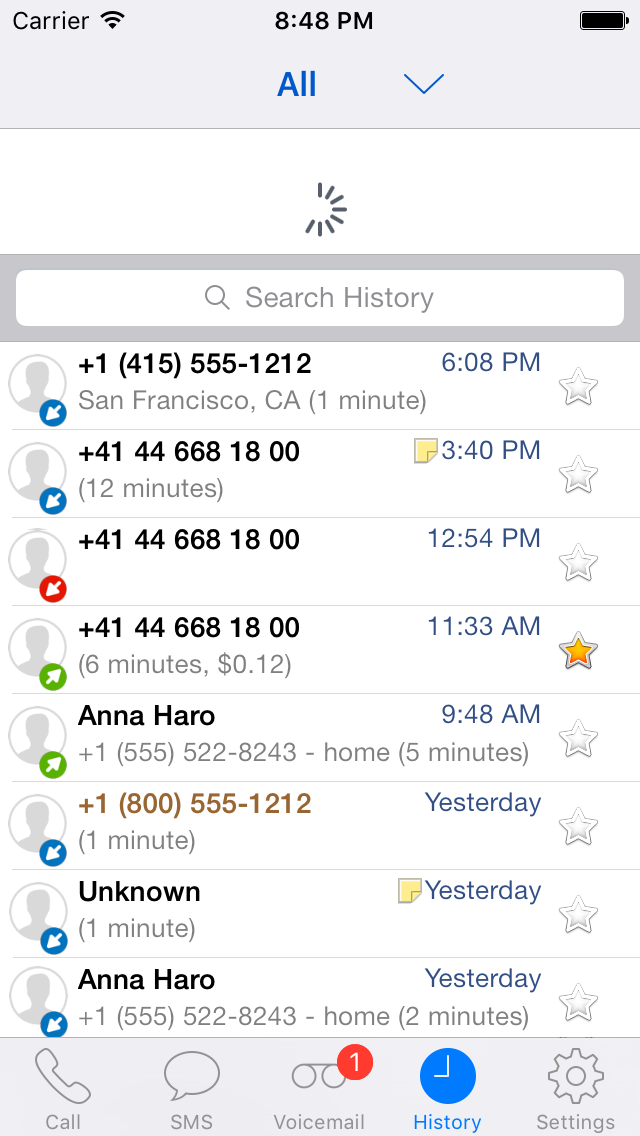
 Placed call